Publishing a Game to Yandex Games
In this tutorial you will prepare a game with the GamePush SDK, connect the Yandex Games platform, fill in the draft in the Yandex Games developer console, pass moderation, and optionally hand the game over for distribution.
You can use this guide whenever you publish a new HTML5 game to Yandex Games.
To get started you will need:
- A game with the GamePush SDK integrated
- A GamePush account
- A Yandex Games developer account
Preparing the Game for Yandex Games
Connecting the GamePush SDK
For plugin integration into the engine, use the instructions below:
- Getting started — JavaScript / HTML5 and general setup
- Unity
- Construct 3
- Godot
- Defold
- GameMaker
Core methods
Game Ready
The main method required to pass Yandex Games moderation is Game Ready. It tells the platform that the game has finished loading and is ready for the first player interaction.
Call it after the game is fully loaded:
- JavaScript
- Construct 3
- Unity

More details: Game start.
Pause
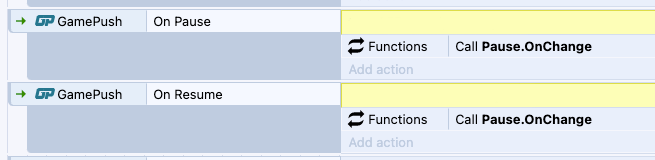
Add the pause module so the platform SDK and GamePush can correctly stop gameplay when the game loses focus, is minimized, or when an ad is shown.
- JavaScript
- Construct 3
- Unity
gp.on('pause', () => {
    // Pause gameplay, timers, physics
});

gp.on('resume', () => {
    // Resume gameplay
});
private void OnEnable()
{
    GP_Game.OnPause += OnPause;
    GP_Game.OnResume += OnResume;
}

private void OnDisable()
{
    GP_Game.OnPause -= OnPause;
    GP_Game.OnResume -= OnResume;
}

private void OnPause()
{
    // Pause gameplay, timers, physics
}

private void OnResume()
{
    // Resume gameplay
}
More details: Pause.
Gameplay markup
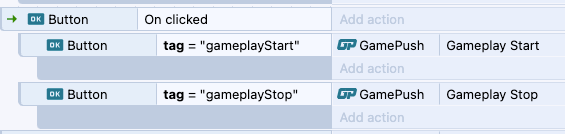
Gameplay start/stop methods help the platform SDK detect whether the player is in an active gameplay phase, in the main menu, or on pause.
- JavaScript
- Construct 3
- Unity
// When a level / gameplay session starts
gp.gameplayStart();

// When a level ends, the player returns to the menu, or the game is paused
gp.gameplayStop();
// When a level / gameplay session starts
GP_Game.GameplayStart();

// When a level ends, the player returns to the menu, or the game is paused
GP_Game.GameplayStop();
More details: Gameplay.
Sounds
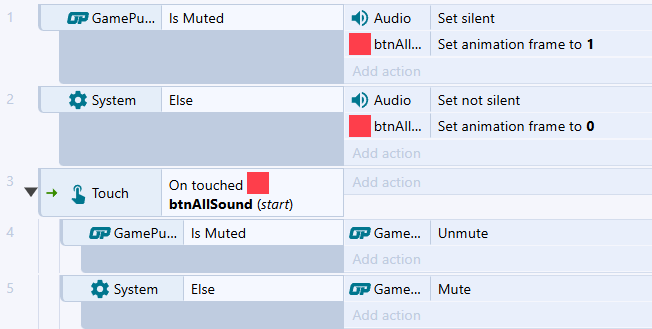
The sounds module helps avoid common Yandex Games audio issues: music continuing on Android when the game is minimized, audio during ads, and similar cases.
- JavaScript
- Construct 3
- Unity
gp.sounds.on('mute', () => {
    // Mute all game audio
});

gp.sounds.on('unmute', () => {
    // Restore audio
});
private void OnEnable()
{
    GP_Sounds.OnMute += OnMute;
    GP_Sounds.OnUnmute += OnUnmute;
}

private void OnDisable()
{
    GP_Sounds.OnMute -= OnMute;
    GP_Sounds.OnUnmute -= OnUnmute;
}

private void OnMute()
{
    // Mute all game audio
}

private void OnUnmute()
{
    // Restore audio
}
More details: Sounds.
Language auto-detection
If the game supports two or more languages, detect the language on start — even if the game has a manual language switch.
If the platform language is not available in your game, fall back to English.
- JavaScript
- Construct 3
- Unity
const lang = gp.language; // ISO 639-1, e.g. 'ru', 'en'

// Language as enum Language ("English", "Russian")
Language lang = GP_Language.Current();

// Language as ISO 639-1, e.g. 'ru', 'en'
string langISO = GP_Language.CurrentISO();
More details: Language.
Saving and loading progress
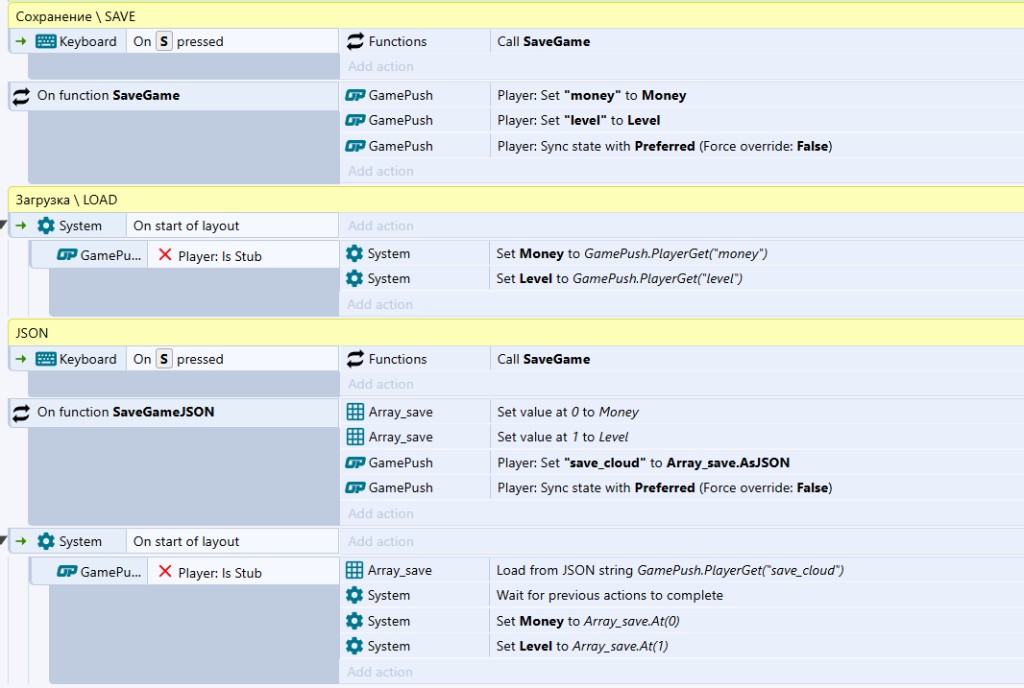
Before publishing to any platform, add progress saving and loading. With GamePush, progress is synced to the Yandex Games cloud through the Player module.
- Create player fields in the GamePush control panel (Players → Player fields).
- Update fields in the game and confirm changes with
sync. - On game start, read the saved values from the player fields.
- Choose the storage type for the platform in the project panel under platform settings.
- JavaScript
- Construct 3
- Unity
// Save
gp.player.set('level', 2);
gp.player.set('coins', 150);
await gp.player.sync();

// Load (after SDK initialization)
const level = gp.player.get('level');
const coins = gp.player.get('coins');
// Save
GP_Player.Set("level", 2);
GP_Player.Set("coins", 150);
GP_Player.Sync();

// Load (after SDK initialization)
int level = GP_Player.GetInt("level");
int coins = GP_Player.GetInt("coins");
sync sends local player changes to the cloud and applies server-side logic (unconsumed purchases, triggers, and more). Call it after important actions: finishing a level, receiving a reward, or completing a purchase.
More details: Cloud saves.
Advertising
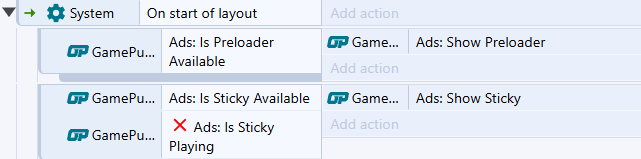
At game start you can call two ad units: Preloader and Sticky banner. On Yandex Games the Preloader is always shown by the platform itself, and the Sticky banner is configured in the Yandex console under Ads. We still recommend integrating the calls in code so the game is ready for other web platforms.
- JavaScript
- Construct 3
- Unity
// Preloader — before gameplay starts
await gp.ads.showPreloader();

// Sticky banner — outside the game area; on Yandex Games it can appear below, above, or to the right
gp.ads.showSticky();
// Preloader — before gameplay starts
GP_Ads.ShowPreloader(OnPreloaderStart, OnPreloaderClose);

// Sticky banner — outside the game area; on Yandex Games it can appear below, above, or to the right
GP_Ads.ShowSticky();

private void OnPreloaderStart() { }
private void OnPreloaderClose(bool success) { }
The main ad unit in browser games is interstitial (Fullscreen). It is usually shown between levels. In games without levels it can be shown after non-gameplay actions or with a short pause and countdown before the ad.
Do not show fullscreen ads during active gameplay. This can lead to rejection on the platform and a poor player experience.
- JavaScript
- Construct 3
- Unity
await gp.ads.showFullscreen();

GP_Ads.ShowFullscreen(OnFullscreenStart, OnFullscreenClose);

private void OnFullscreenStart() { }
private void OnFullscreenClose(bool success) { }
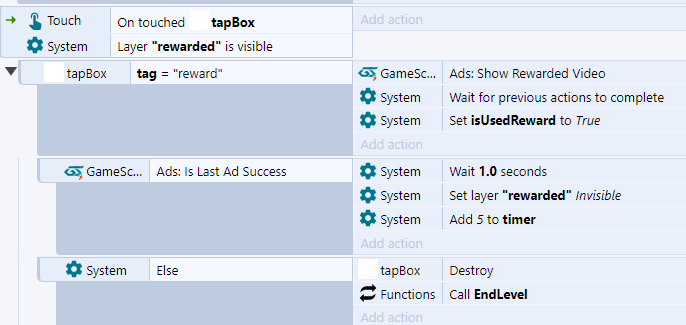
For extra ad revenue, add rewarded video (Rewarded): end-of-level bonuses, currency boosts, revive on defeat, faster timers, and similar mechanics.
- JavaScript
- Construct 3
- Unity
const success = await gp.ads.showRewardedVideo();
if (success) {
    gp.player.add('coins', 100);
    await gp.player.sync();
}
GP_Ads.ShowRewarded("COINS", OnRewardedReward, OnRewardedStart, OnRewardedClose);

private void OnRewardedStart() { }

private void OnRewardedReward(string value)
{
    if (value == "COINS")
    {
        GP_Player.Add("coins", 100);
        GP_Player.Sync();
    }
}

private void OnRewardedClose(bool success) { }
More details: Advertising and Sticky banner for Yandex Games.
Purchases
Besides ads, Yandex Games supports in-app purchases: skins, currency, ad-skip tickets, premium status, battle passes, and more.
Key points when integrating purchases:
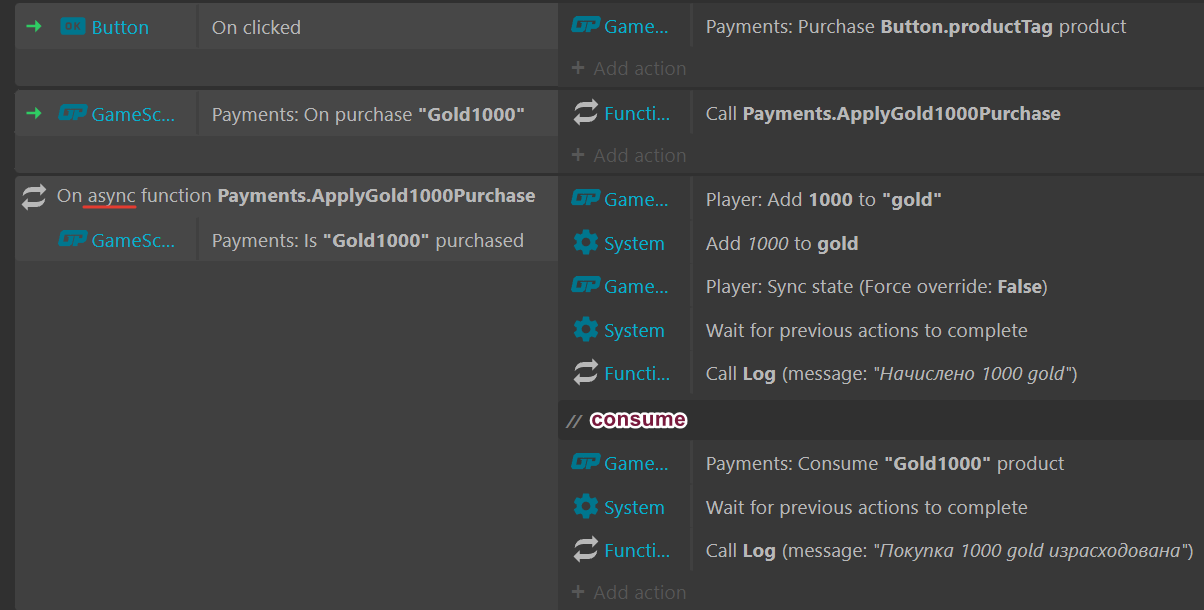
- Fill in purchase tags correctly and use them consistently in code.
- Consume one-time purchases and grant the item correctly.
- Fill in currency rates in the GamePush panel — the service can help auto-fill prices for platforms.
Example of a one-time purchase:
- JavaScript
- Construct 3
- Unity
await gp.payments.purchase({ tag: 'GOLD_1000' });
gp.player.add('gold', 1000);
await gp.player.sync();
await gp.payments.consume({ tag: 'GOLD_1000' });
GP_Payments.Purchase("GOLD_1000", OnPurchaseSuccess, OnPurchaseError);

private void OnPurchaseSuccess(string productIdOrTag)
{
    if (productIdOrTag == "GOLD_1000")
    {
        GP_Player.Add("gold", 1000);
        GP_Player.Sync();
        GP_Payments.Consume("GOLD_1000");
    }
}

private void OnPurchaseError() { }
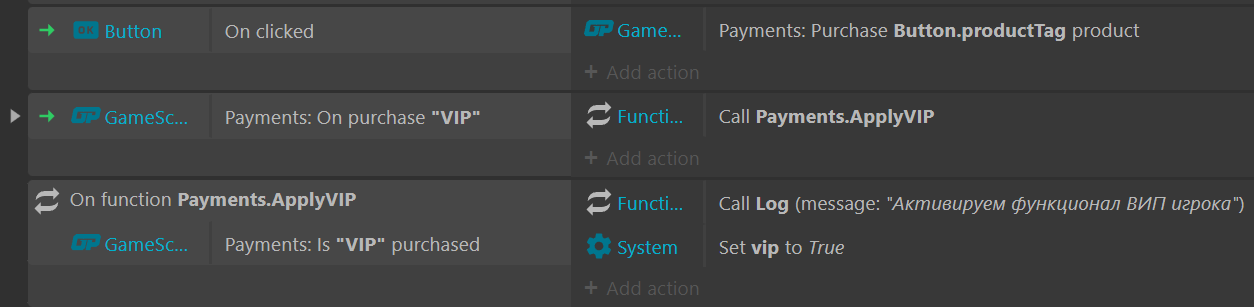
Example of a permanent purchase:
- JavaScript
- Construct 3
- Unity
await gp.payments.purchase({ tag: 'VIP' });

if (gp.payments.has('VIP')) {
    // Apply VIP benefits
}
GP_Payments.Purchase("VIP", OnPurchaseSuccess, OnPurchaseError);

private void OnPurchaseSuccess(string productIdOrTag)
{
    if (productIdOrTag == "VIP")
        GP_Player.Set("VIP", true);
}

private void OnPurchaseError() { }

// Check later when needed
if (GP_Player.GetBool("VIP"))
{
    // Apply VIP benefits
}
More details: Payments and Yandex Games platform setup.
Testing in the GamePush Sandbox
With GamePush you can verify the main integration before uploading the build to Yandex Games:
- Game Ready is called on time
- Language is detected correctly
- Music and SFX stop during ads
- Purchases work from the game
- Unconsumed purchases are granted correctly (consume if the player paid but did not receive the item)
How to open the sandbox
- Upload the HTML5 build of the game as a draft in the Game Hosting section of the project panel.
- Open the sandbox by clicking Test game.
- Use Developer tools: ad stubs, the test purchase form, and on-page logs.
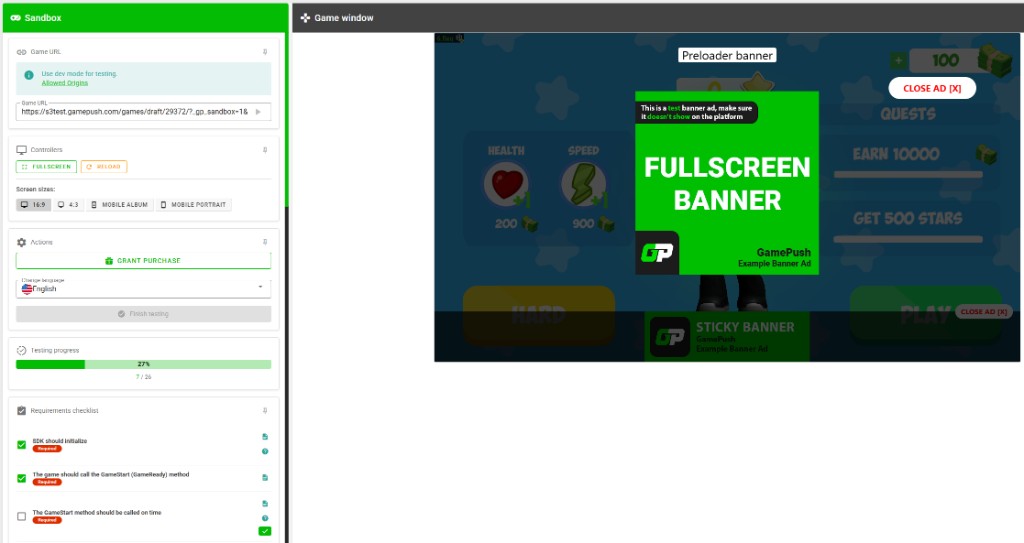
Check:
-
gp.gameStart()/GP_Game.GameReady()after load - Pause and sounds on focus loss and during ads
- The game detects the language and localizes correctly for the language selected in the sandbox
- Progress is saved and restored after reload
- All ad units are called correctly; Rewarded grants a reward only after a successful view
- Purchase → grant → consume (for one-time products)
- Grant a purchase with the sandbox tools, reload the game, and check that the player receives the unconsumed purchase
After sandbox testing, deep retesting inside the Yandex Games draft is usually not required — a short check is enough.
Creating a Draft and Connecting the Platform
Creating a Yandex Games draft
- Open the Yandex Games developer console.
- Click Add game and create a new draft with a unique ID.
- Do not reuse a draft where another game was previously published.
Filling in the draft
On the Draft → General tab fill in the main fields:
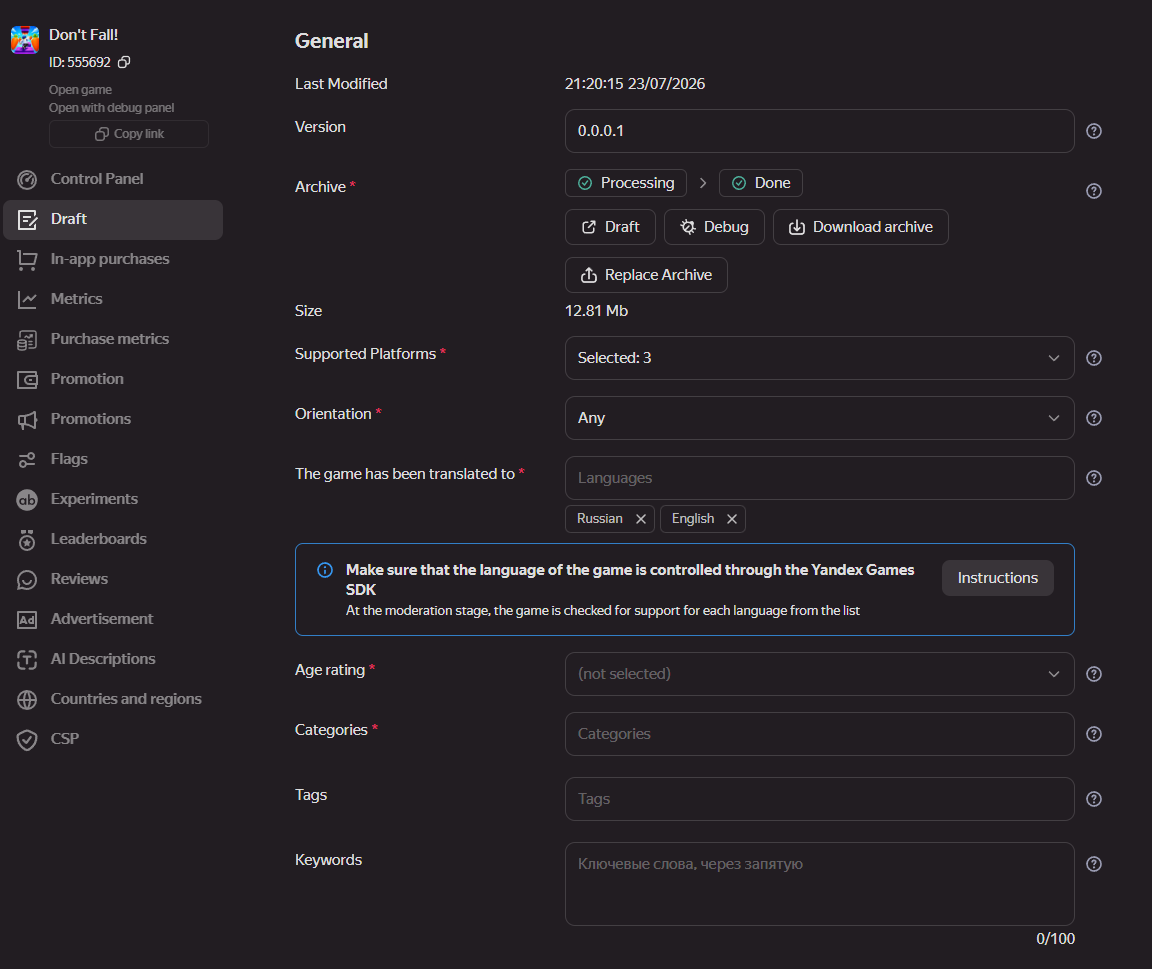
- Version — build version, for example
0.0.0.1 - Archive — ZIP with the HTML5 game (
index.htmlin the root) - Supported platforms — devices the game runs on
- Orientation — portrait / landscape / any
- Game translated to — localization languages (language switching is handled via the SDK)
- Age rating and Categories — required for moderation
- Tags and Keywords — for catalog search
- Game uses cloud saves — enable if you save progress via the SDK
- Delayed publication — if you want to publish manually after moderation
- Developer comment — a note for moderators
Also fill in Description and promotion: texts, icon, cover, screenshots, and video.
If the game relies on many online features and frequent updates that require publishing via iframe, request permission from Yandex Games support (a GamePush hosting URL can be used as the iframe).
In the Ads section enable the Sticky banner:
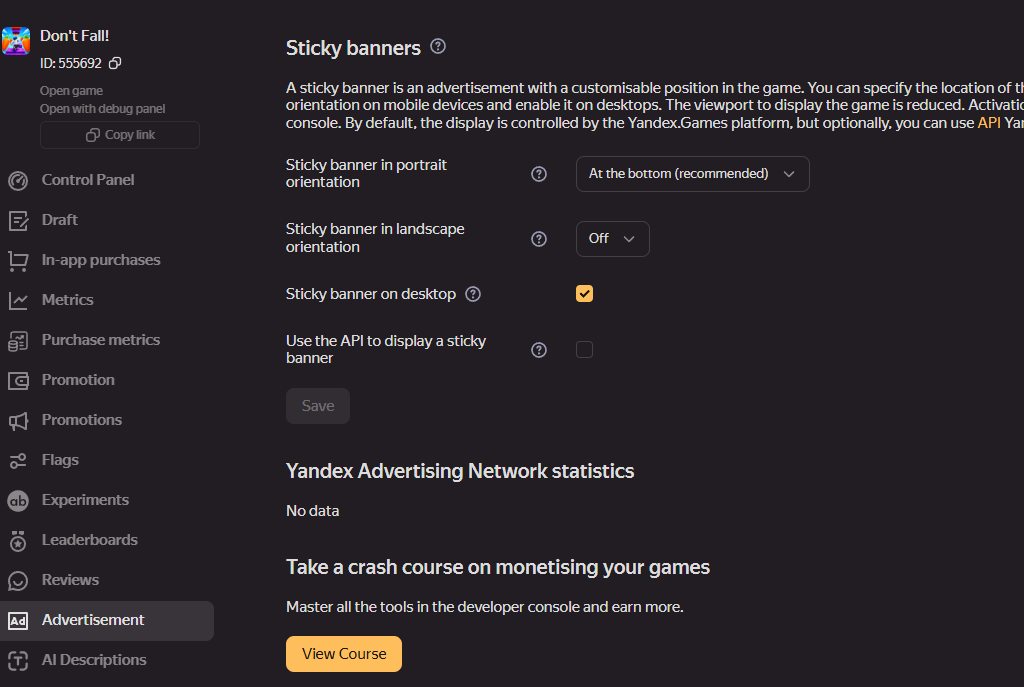
A sticky banner can generate a large share of ad revenue. We strongly recommend enabling it.
Connecting Yandex Games in GamePush
In the GamePush project panel add the Yandex Games platform. On the Connect tab fill in the game ID and Secret Key.
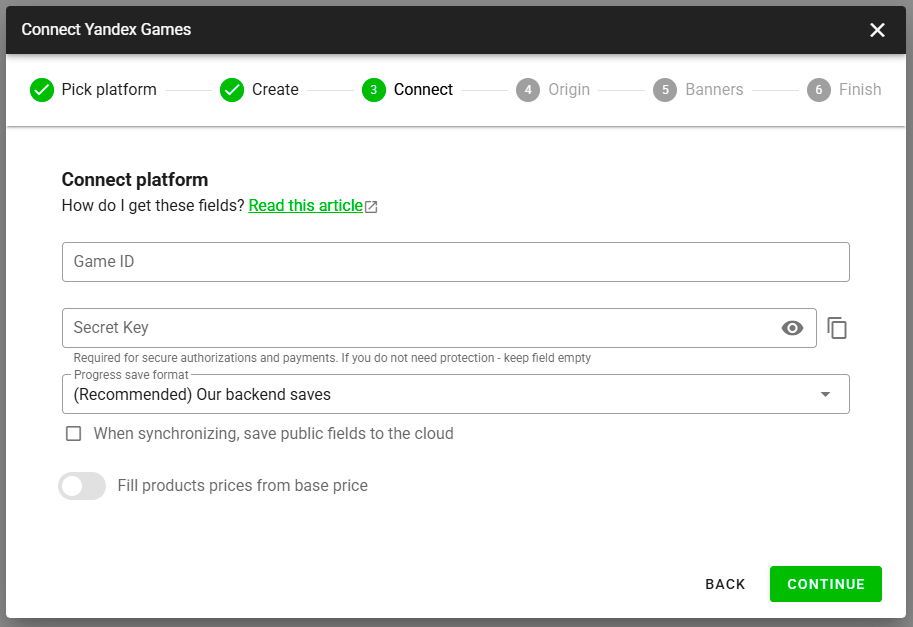
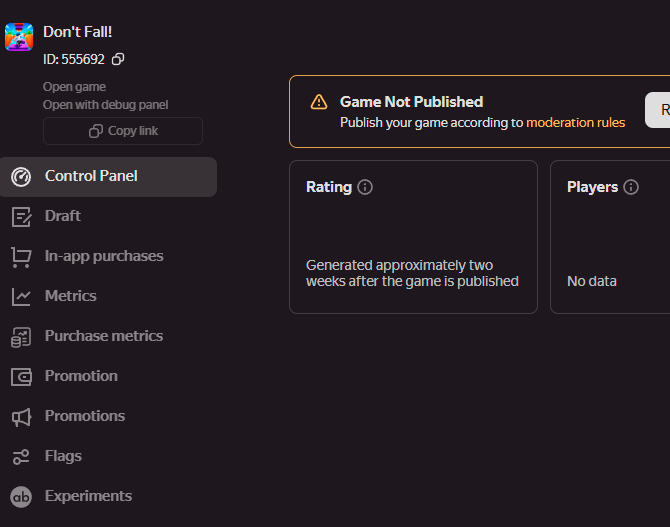
You can take the Game ID from the top of the left menu in the Yandex Games console.
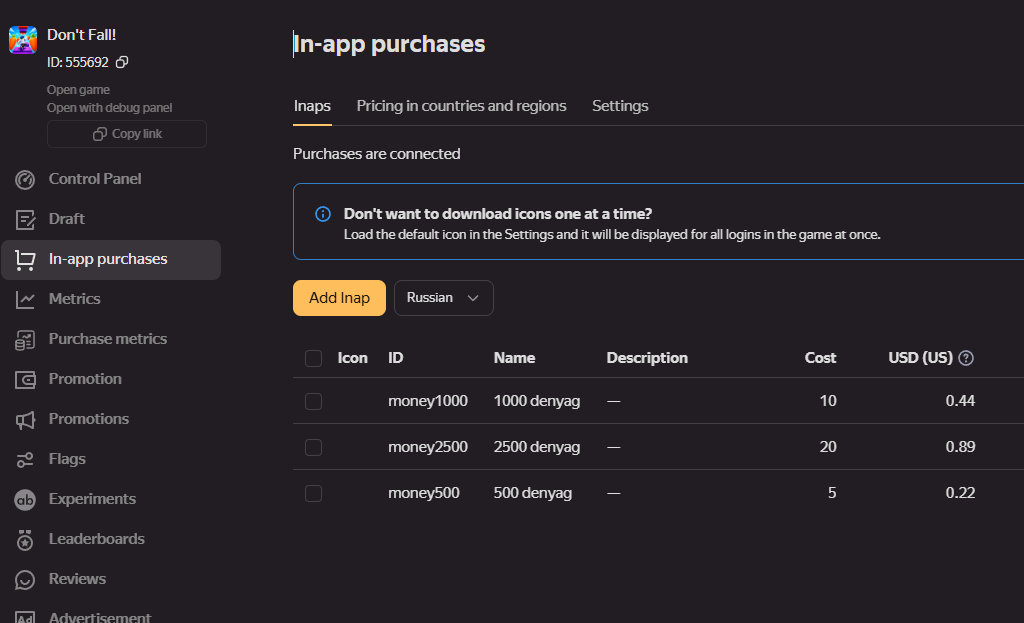
To get the Secret Key, open In-app purchases in the Yandex Games console.
Add your own purchase or any test purchase. Refresh the page — the Secret Key field will appear on the Settings tab.
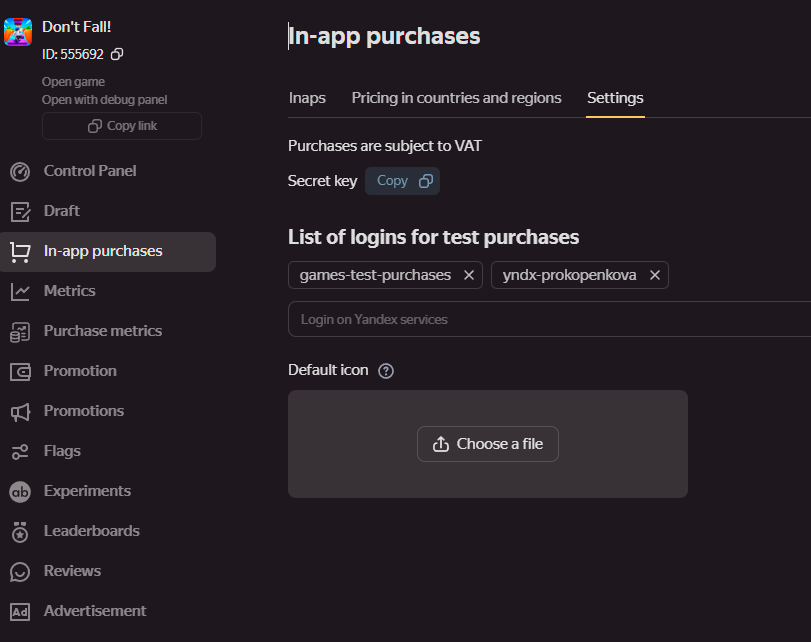
After copying the key, delete the temporary purchase, otherwise the game may fail moderation.
Save the platform in GamePush.
Adding purchases in Yandex Games
- Create products in the GamePush panel and copy them to the Yandex Games console (or the other way around) with matching IDs.
- In GamePush, link the Yandex purchase ID to the product.
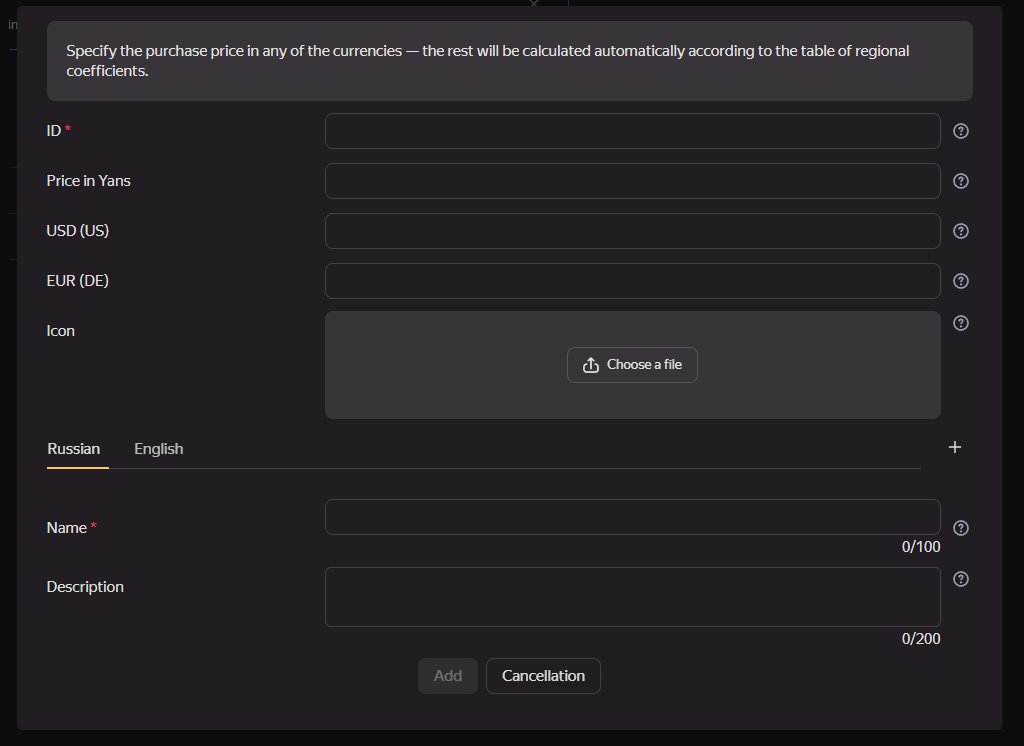
Purchases filled in GamePush can be exported to CSV and imported into Yandex Games without filling them in again.
How purchases are enabled depends on your agreement with Yandex:
- Unified licensing agreement — purchases are enabled automatically for all your games. No email request is needed.
- Older agreement via Yandex Advertising Network (РСЯ) — send a request to enable purchases to
games-partners@yandex-team.ru.
Check the status in the developer console under Profile → Unified licensing agreement.
GamePush setup: Platform setup — Yandex Games.
Checking the Game in the Yandex Games Draft
Open the draft via Open draft or Open draft with debug panel.
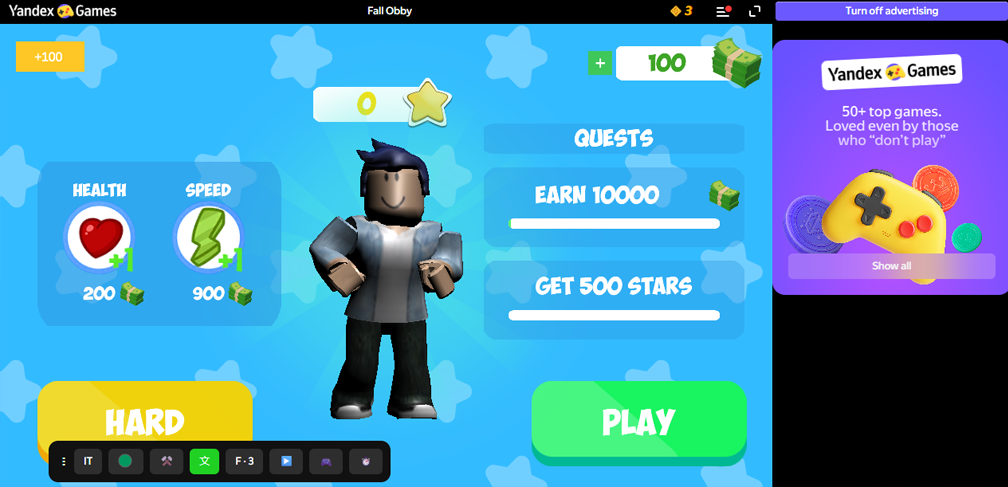
In draft mode the game talks to the real Yandex Games platform: real ads, Yandex authorization, cloud saves, and real purchase catalog.
A short check is enough if you already tested in the GamePush sandbox:
- The game launches and Game Ready works
- Progress is saved
- Ads and purchases (if any) work
- Sound behaves correctly when minimized and during ads
Submitting for Moderation
When the draft is ready, click Submit for moderation.
By default the game is published as soon as it is approved. To publish manually later, enable Delayed publication.
Moderation statuses
| Status | Meaning |
|---|---|
| Waiting for moderation | The draft was submitted and is in the queue |
| Published | Approved and published automatically |
| Checked | Approved with delayed publication — use Publish on the Draft tab |
| Rejected | Not approved — reasons are sent to the email linked to the Yandex ID |
Full review usually takes 3–5 business days. Content-only review (promo materials) is faster — about 2 business days.
If rejected, fix the issues and submit the draft again.
Also use the Game Testing Checklist while preparing the build.
Distribution via GamePush
To avoid spending time on moderation, contracts, and talking to managers — it takes a lot of time — you can send the game to GamePush Distribution.
We publish web games on platforms turnkey and support you on every question. We also provide hosting, CDN, and a game backend as part of the partnership. All of this helps free up about 95% of your resources for what you actually want to work on.
In the project panel open Distribution, fill in the form, and click Submit for moderation.
What's Next
Stay in Touch
Other documents of this chapter available Here. To get started, welcome to the Tutorials chapter.
GamePush Community Telegram: @gs_community.
For your suggestions e-mail: official@gamepush.com
We Wish you Success!