Notifications
This section covers two features that help you retain players: push notifications and the inbox.
Push notifications bring players back when the game is closed. Let them know that their energy is restored, a daily reward is waiting, a friend sent a gift or an event has started, and they come back to play. You write the code once, and GamePush delivers the notification via VK, OK, Telegram, MSN, Web Push or Android. You can change texts, schedules and audiences in the control panel without updating the game.
Inbox is a mailbox inside the game for personal messages: gifts, compensations, messages to players where pushes do not work. It works on every platform, including those where push notifications are not supported, and does not use your push limit. The player sees the message the next time they enter the game and claims the gift with one button.
The two features work together: one campaign can send a push and put a message in the inbox, and players without push notifications get the message in the inbox only.
Concept
- One API for all platforms. GamePush handles all delivery channels itself: VK, OK, Telegram, MSN, Web Push or Firebase Cloud Messaging (FCM) on Android.
- Scheduled notifications from the game client. For example, "Energy restored" exactly when the energy is full. More
- Reminders without code: energy restored, daily reward available, reward streak is about to burn out, the player has not entered for N days. More
- Campaigns from the control panel: instant, scheduled, recurring and re-engagement of inactive players, with audience by platforms, languages, segments and conditions. More
- Chat notifications: personal messages, feed messages, channel messages and invites. More
- Inbox with tags and gifts. Works on every platform, including platforms without push support. More
- Testing and support tools in the control panel: pushes, inbox and push channels of a player, retrying pushes and compensating players with a gift in the inbox. More
- Server API for sending notifications from your game server. More
- Notification texts are stored in templates with translations and variables, so you can change the text without updating the game.
- Each delivered push is counted, opens are tracked, and you can see statistics for every campaign.
📄️ Permissions and Delivery
How to ask the player for permission to receive notifications and how to handle the game launch from a notification.
📄️ Scheduled Notifications
Schedule a notification from the game: "Energy restored", "The building is ready", "Your chest is open". The notification comes when the player is not in the game.
📄️ Campaigns
Campaigns are notifications that you send from the GamePush control panel without updating the game: news, events, sales, re-engagement of players who have left.
📄️ Chat Notifications
Notify players about personal messages, feed messages, channel messages and invites from channels when they are not in the game.
📄️ Inbox
The inbox is a mailbox inside the game for personal messages: gifts, compensations, messages to players where pushes do not work. It works on every platform, including platforms without push notifications, and does not count towards the push limits.
📄️ Web Push on Your Site
Web Push lets you send notifications to players of your game on a custom site. Notifications come from your domain, even when the game tab is closed.
📄️ Testing and Support
The control panel shows everything about the notifications of a specific player and of the whole project: pushes and their statuses, the inbox as the player sees it, and the push channels of players. Use these tools to test notifications during development and to investigate player complaints after the release.
📄️ Android (FCM)
Push notifications in GamePush Android builds are delivered via Firebase Cloud Messaging (FCM). Notifications arrive even when the game is closed, and tapping a notification opens the game and passes the notification data to it.
Supported Platforms
 VK Games
 OK Games
 Telegram
 MSN
 Web (custom site)
 Google Play
 Android (alternative stores)
Platforms without support
 CrazyGames
 GamePix
 GameDistribution
 GameMonetize
 SmartMarket
 VK Play
 Yandex Games
 WG Playground
 Kongregate
 PlayDeck
 beeline
 Fotostrana
 Y8
 CoolMathGames
 Pikabu Games
 Partner's platforms
 Moi Mir
| Channel | Platform | Player consent | What you need to set up |
|---|---|---|---|
| VK | VK Games | VK "Allow notifications" dialog | Service key of the app in the VK platform settings |
| OK | OK Games | No separate request, notifications are allowed by default | Public key and secret key of the app in the OK platform settings |
| Telegram | Telegram | Telegram "Allow the bot to message you" dialog | Bot token (secret key) and game link in the Telegram platform settings |
| MSN | MSN | MSN Games and browser permission | For pushes from the server: Game ID and MS Start API Key in the MSN platform settings, otherwise delivery fails with msn_game_id_missing / msn_api_key_missing. Scheduling on the device with title and text needs nothing |
| Web Push | Custom sites | Browser permission on your site | External SDK and service worker on your site |
| FCM | Android apps | Android POST_NOTIFICATIONS permission | google-services.json for the build and a Firebase service account |
Some platforms do not support push notifications. On these platforms use the inbox: gp.notifications.isAvailable is false there, and campaigns with the Push and inbox or Inbox if no push channel delivery put messages into the inbox instead.
Never offer notifications to the player when they are not available — check gp.notifications.isAvailable first. More
Getting Started
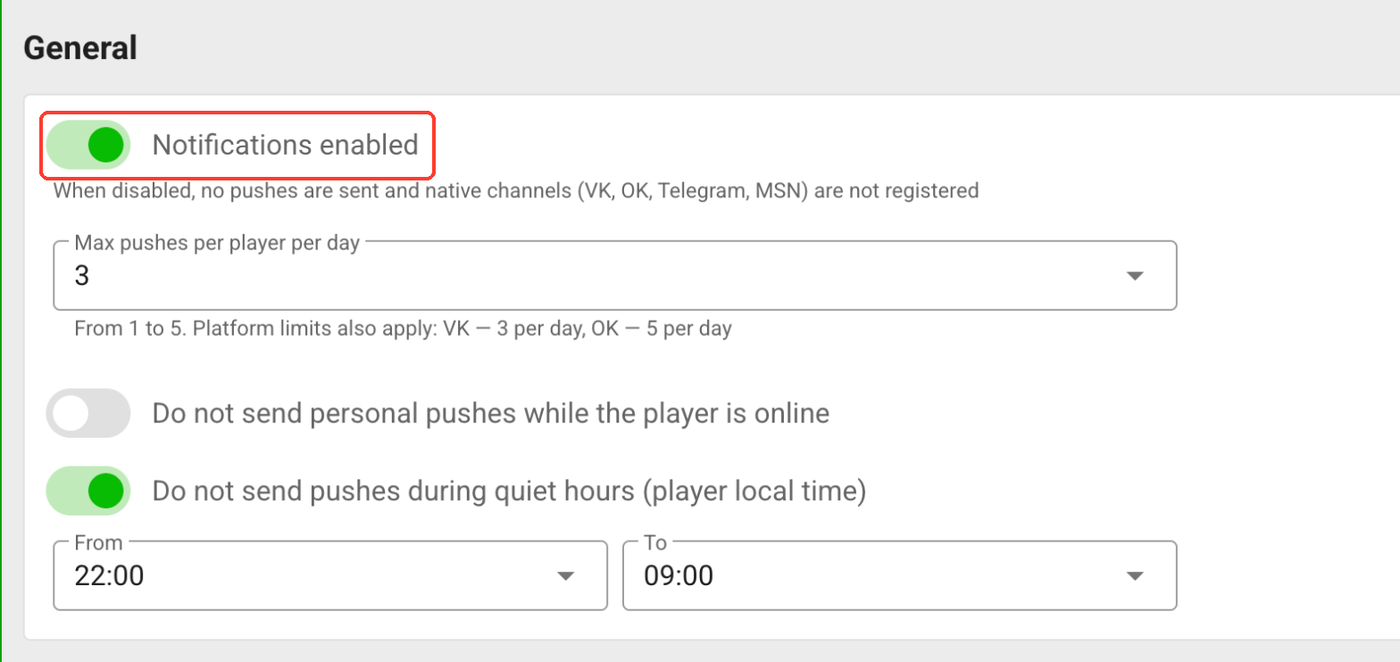
- Go to your project in the GamePush Panel, open the Notifications section and enable notifications. They work for all players from the Start plan; on Release and Premium — only for test players.
- Set up the channels you need in the platform settings (see the table above).
- Create templates with titles and texts for all game languages.
- In the game, ask the player for permission at the right moment:
gp.notifications.requestPermission(). - Schedule notifications from the game, set up reminders, campaigns and chat notifications.
- Test on test players: they receive notifications on any plan, even while notifications are still disabled in the project, see limits.
The Settings tab of the Notifications section: enable notifications, limit pushes per player per day and set quiet hours.
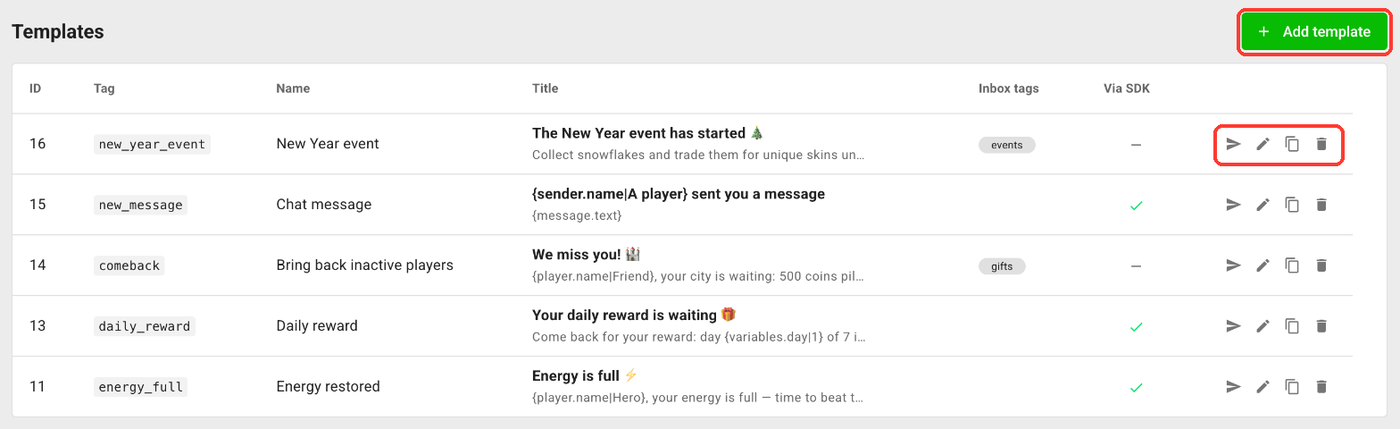
Templates
A template is the text of a notification. You create templates in the control panel and refer to them by tag (or ID) from the SDK, the server API, campaigns and chat settings.
A template contains:
- Tag and name.
- Title and text with translations into the game languages. The player receives the text in their language.
- Icon and image (where the channel supports them).
- Payload — the default payload that the game receives when the player opens the game from the notification, and in the inbox message. More
- Inbox tags — tags of the message when the template is delivered to the inbox.
- Allow from players (
allowFromPlayers) — whether the template can be used from the game client: ingp.notifications.schedule()and in chatnotificationOptions. Templates without this flag can only be used by the control panel and the server API.
Templates are listed in Notifications → Templates. Search works by name and tag; the copy button creates a template based on an existing one.
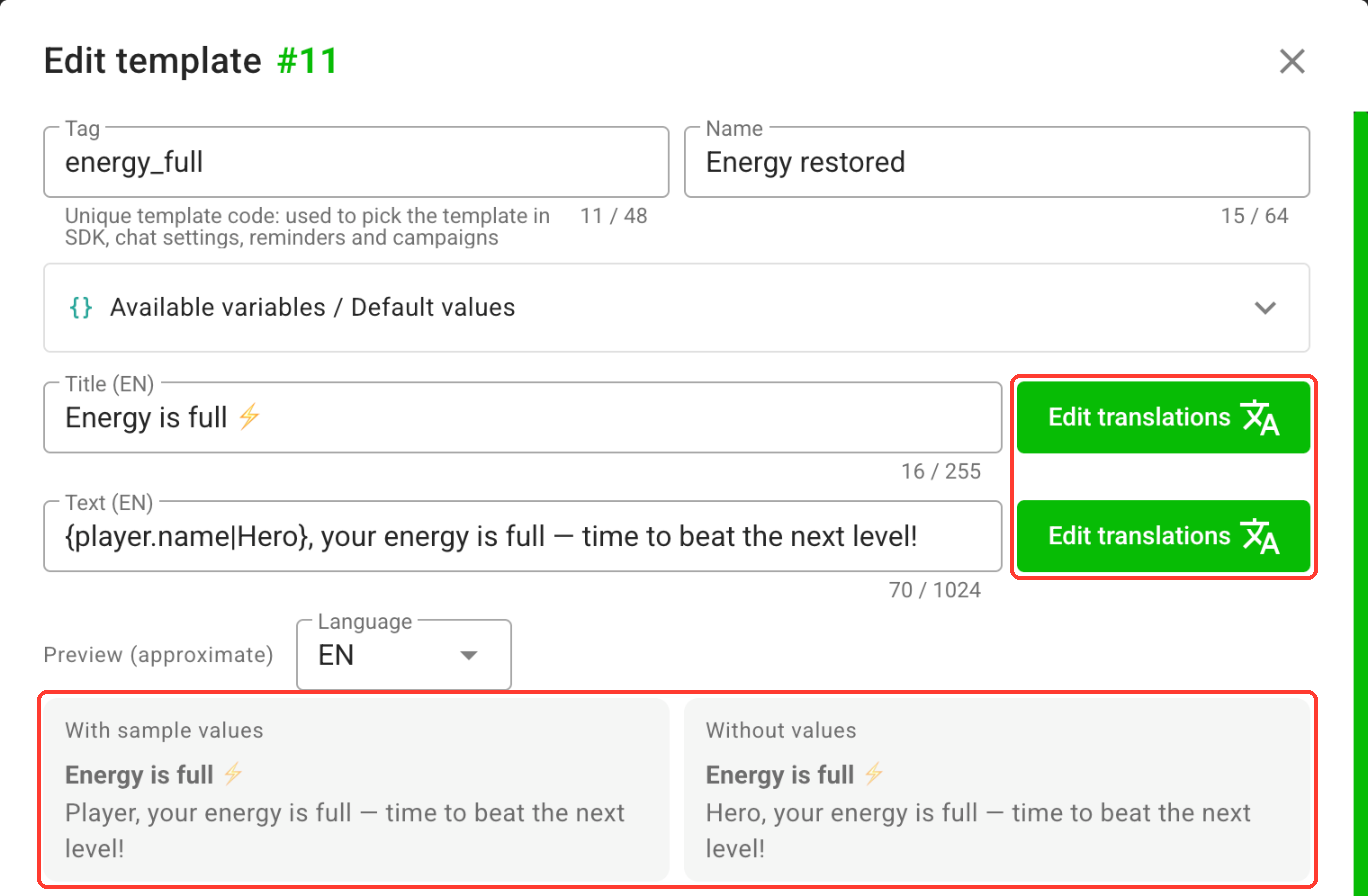
In the template editor, fill in the tag, the name, and the title and text for each game language. Start with the default language, then switch the language tabs.
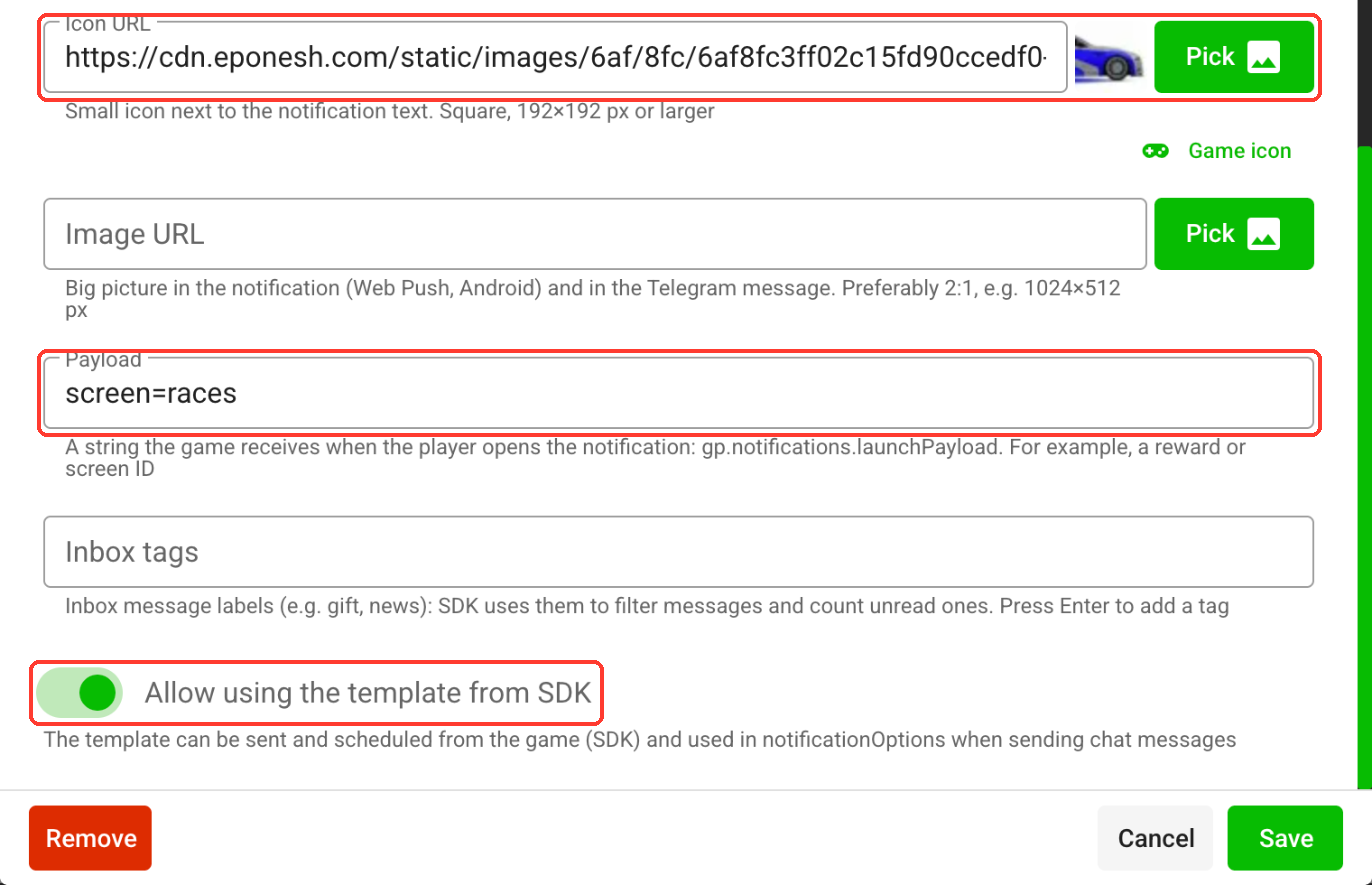
Below are the icon, the image and the payload. Pick the icon from your project images or use the game icon with one click. Enable Allow using the template from SDK if the game sends this template with schedule() or chat notificationOptions.
Template Variables
You can use variables in the title and text. They are replaced at the moment of sending.
| Variable | Value |
|---|---|
{player.name} | Name of the player who receives the notification |
{player.id} | ID of the player who receives the notification |
{sender.name} | Name of the sender (chat notifications) |
{sender.id} | ID of the sender (chat notifications) |
{sender.avatar} | Avatar URL of the sender (chat notifications) |
{message.text} | Text of the chat message |
{channel.name} | Name of the channel |
{count} | Number of chat messages combined into one push |
{variables.<key>} | Your variable passed in variables. You can also write it as {<key>} |
Reminders without code have their own variables, for example {scheduler.day} and {days}. See Reminders Without Code.
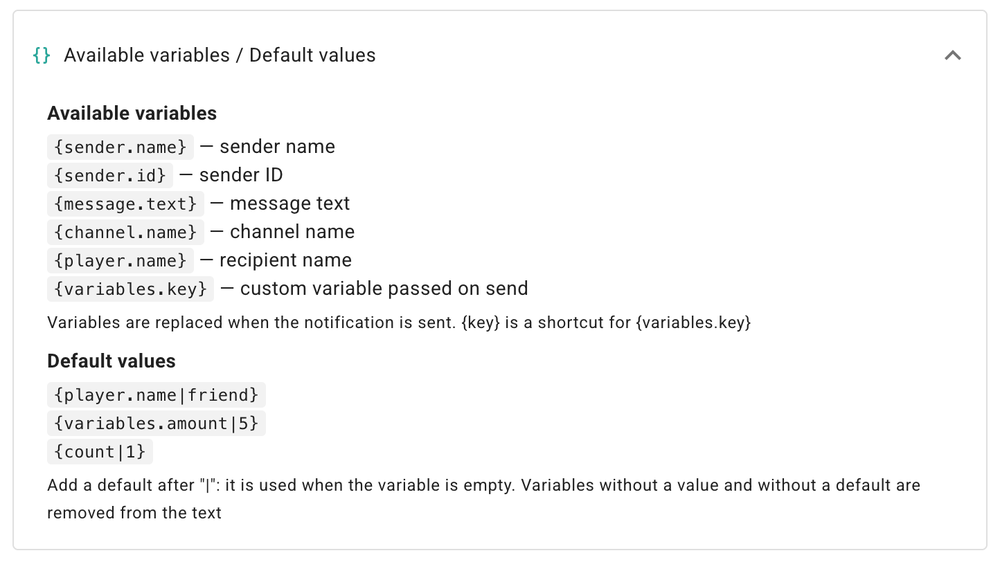
The list of available variables is shown right in the editor. The preview on the right shows the text with sample values in the selected language.
Example of a template text:
{player.name}, your energy is full! ⚡ {variables.energy} / {variables.maxEnergy}
Default values
Write a default value after |: it is used when the variable is empty or not passed.
{player.name|friend}, come back! {variables.amount|5} energy is waiting
Campaigns from the panel have no game variables, and guest players have no name — always set defaults for {player.name} and {variables.*} in such templates. If a variable is empty and has no default, it is removed from the text together with the leftover punctuation (, / —), and the panel shows a warning in the preview.
Preview
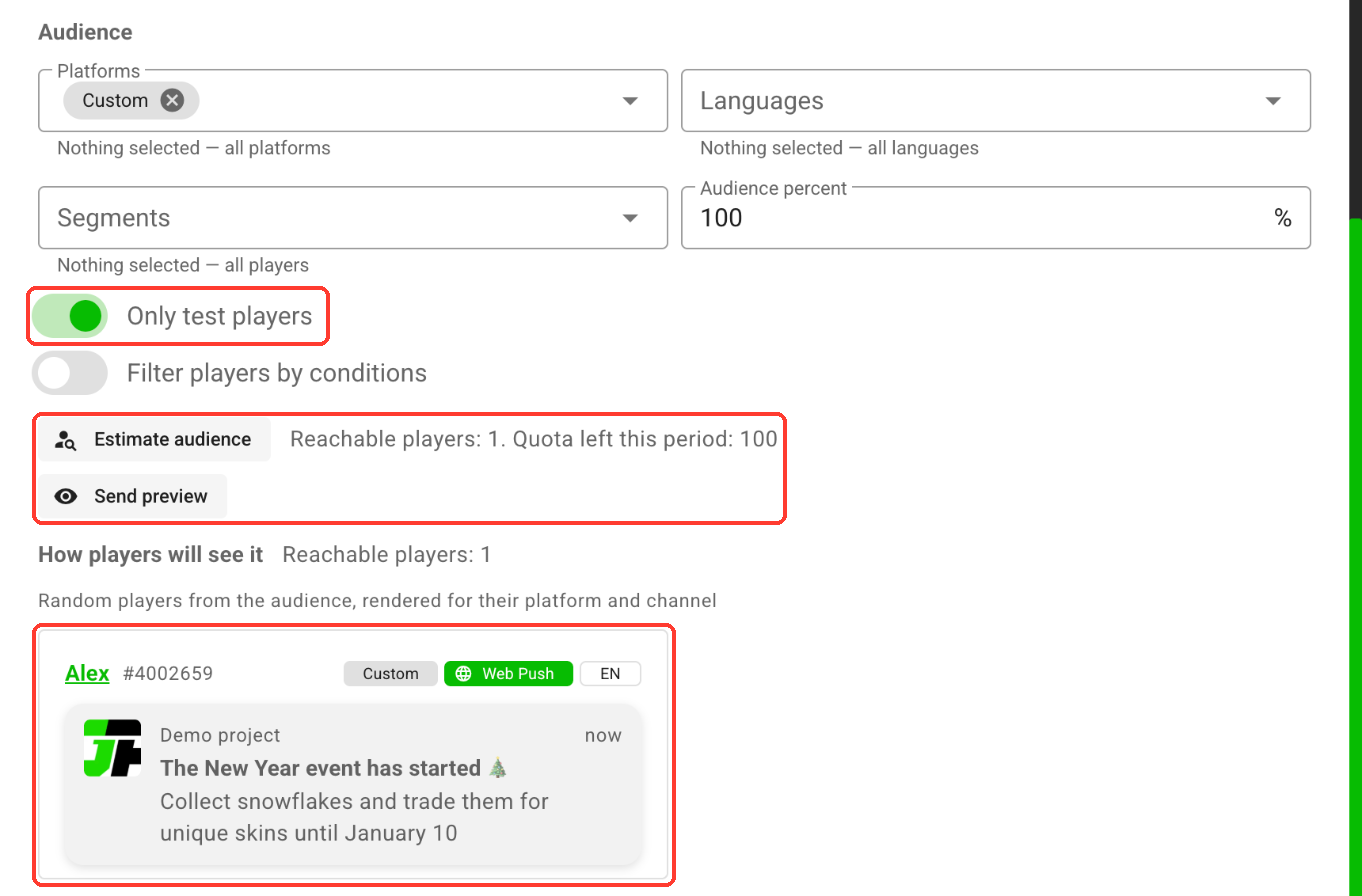
- Panel → Notifications → Campaigns → «Send preview» shows several players from the campaign audience and how each of them will see the notification on their platform: VK and OK show a single line «title — text» cut to 254 / 100 characters, Web Push shows a title and a body. Empty variables and truncated texts are highlighted.
- In the game (dev mode) notifications from
gp.notifications.schedule()are rendered for the current player and appear right on the page instead of real delivery. See Testing during development.
Limits and Pricing
Each delivered push notification costs 2 requests on any channel.
Pushes count towards the monthly limit of your account plan:
| Plan | Pushes per month |
|---|---|
| Release / Premium | Only to test players |
| Start | 100,000 |
| Unlimited | 200,000 |
| Advanced | 1,000,000 |
| Pro | 3,000,000 |
| Enterprise | By contract |
Limits for one player:
- Daily limit per player — 3 pushes per day by default, up to 5. Set in the notification settings.
- Platform limits are applied on top of your limit:
- VK — no more than 3 notifications per day and 1 per hour.
- OK — no more than 5 notifications per day, and only to players who have been active in the last 14 days.
- Quiet hours — a time range in the player's local time when pushes are not delivered. Pushes that fall into quiet hours are postponed until the quiet hours end. Personal notifications that would be delayed by more than 24 hours are skipped. Test pushes ignore quiet hours. Enabled by default, from 22:00 to 9:00. More
- Skip if online — do not send personal notifications to a player who is in the game right now. Enabled by default.
Inbox messages do not count towards the push limits. If the player has reached the limit or has no push channel, choose the Inbox if no push channel delivery in the campaign to put the message into the inbox.
Permission Best Practices
Most browsers and platforms show the permission dialog only once. If the player declines, you will not be able to ask again. So ask carefully:
- Do not ask on the first launch. The player does not yet know why they need notifications from your game.
- Use a soft ask. First show your own in-game dialog that explains the benefit: "Turn on notifications and we will tell you when the energy is full". Call
gp.notifications.requestPermission()only if the player agrees. - Ask at a meaningful moment: the energy ran out, the player is waiting for a building to finish, a friend sent a gift, the player has just claimed a daily reward.
- Do not nag. If the player declined the soft ask, wait a few sessions before offering again. If
gp.notifications.canRequestisfalse, do not show the offer at all. - Keep your promise. Send useful notifications and stay well below the limits — players who receive too many pushes turn them off.
- Use the inbox for players without push notifications.
// Show the soft ask only where it makes sense
async function maybeOfferNotifications() {
    if (!gp.notifications.isAvailable || !gp.notifications.canRequest) {
        return;
    }

    // Do not ask on the first sessions
    if (gp.player.stats.activeDays < 2) {
        return;
    }

    // Soft ask in the built-in GamePush confirm window
    const isConfirmed = await gp.windows.showConfirm({
        title: 'Turn on notifications?',
        description: 'We will tell you when the energy is full',
        textConfirm: 'Turn on',
        textCancel: 'Not now',
    });

    if (isConfirmed) {
        await gp.notifications.requestPermission();
    }
}

// For example, when the energy runs out
myGame.on('energyEmpty', maybeOfferNotifications);
Stay in Touch
Other documents of this chapter available Here. To get started, welcome to the Tutorials chapter.
GamePush Community Telegram: @gs_community.
For your suggestions e-mail: official@gamepush.com
We Wish you Success!