Scheduled Notifications
Schedule a notification from the game: "Energy restored", "The building is ready", "Your chest is open". The notification comes when the player is not in the game.
List of Methods
Actions:
gp.notifications.schedule()- schedule a notification. +1 Requestgp.notifications.cancel()- cancel a scheduled notification by tag. +1 Requestgp.notifications.fetchScheduled()- get the player's scheduled notifications. +1 Request
Events:
gp.notifications.on('schedule')- notification scheduled. FREEgp.notifications.on('error:schedule')- failed to schedule a notification. FREEgp.notifications.on('cancel')- notification cancelled. FREEgp.notifications.on('error:cancel')- failed to cancel a notification. FREE
Scheduling costs 1 request. Each delivered push additionally costs 2 requests, see limits and pricing.
How It Works
- Each scheduled notification has a tag. The player can have only one pending notification per tag.
- Calling
schedule()again with the same tag overwrites the pending notification: its content and its time. PasskeepTime: trueto update only the content and keep the time. - The delay is from 60 seconds to 30 days.
- A player can have no more than 16 pending tags at the same time.
- You can use only templates with the Allow from players option (
allowFromPlayers). See templates. - The notification is sent only if the player has a push channel and permission. Check
gp.notifications.permission. - On MSN and Android, pass
titleandtext, and the notification is scheduled on the device: no request to GamePush, no push limit spent. On Android this needs thecordova-plugin-local-notificationplugin in the build. With only a template the notification is scheduled on the server and charged as usual (on MSN this needs the platform settings).
Schedule a Notification
+1 Requestgp.notifications.schedule({
// Notification tag, required
tag: 'ENERGY_FULL',
// Template tag or ID, the template must allow use from players
template: 'ENERGY_FULL',
// In how many seconds to send
delay: 30 * 60,
// Template variables, optional
variables: { energy: 100 },
// Payload for the game when the player opens the notification, optional
payload: 'screen=play',
});
Instead of delay you can pass the exact time in ISO format:
gp.notifications.schedule({
    tag: 'EVENT_START',
    template: 'EVENT_START',
    at: '2026-12-31T18:00:00Z',
});
Parameters:
| Parameter | Type | Description |
|---|---|---|
tag | string | Notification tag. One pending notification per tag |
template | string | Template tag or ID |
delay | number | In how many seconds to send, from 60 seconds to 30 days |
at | string | Or the exact send time, ISO 8601 |
variables | object | Template variables, available as {variables.<key>} or {<key>}. More |
payload | string | Payload for the game. If not passed, the template payload is used. More |
keepTime | boolean | If a notification with this tag is already pending, update only its content and keep the time |
title | string | Title for a notification on the device (MSN, Android). Works together with text |
text | string | Text for a notification on the device (MSN, Android). Works together with title |
On MSN and Android you can schedule a notification on the device without a template:
gp.notifications.schedule({
    tag: 'CHEST_OPEN',
    title: 'The chest is open',
    text: 'Come and see what is inside!',
    delay: 4 * 60 * 60,
});
On other platforms title and text are ignored and the template is required.
The method returns the scheduled notification:
const notification = await gp.notifications.schedule({
    tag: 'ENERGY_FULL',
    template: 'ENERGY_FULL',
    delay: 30 * 60,
});

// null if notifications are disabled in the project
if (!notification) {
    return;
}

// ID
notification.id;
// Tag
notification.tag;
// Template
notification.template;
// Title and text in the player's language
notification.title;
notification.text;
// Payload
notification.payload;
// Send time, ISO 8601
notification.sendAt;
// Scheduled on the device (MSN, Android), without GamePush
notification.isLocal;
// Dev mode: simulated on the page, not sent to the server
notification.isDev;
Other errors reject the promise. See Notifications Disabled in the Project and error codes.
Subscribe to events:
// Notification scheduled
gp.notifications.on('schedule', (notification) => {
    console.log('Scheduled at', notification.sendAt);
});

// Failed to schedule a notification
gp.notifications.on('error:schedule', (error, { input }) => {
    // error - error code, input - schedule() parameters
    console.warn('Failed to schedule', input.tag, error);
});
Overwriting and keepTime
The notification with the same tag is overwritten. This is convenient for timers that change during the game.
// The player spent energy - move the "Energy restored" notification
myGame.on('energySpent', () => {
    const secondsToFull = myGame.getSecondsToFullEnergy();

    gp.notifications.schedule({
        tag: 'ENERGY_FULL',
        template: 'ENERGY_FULL',
        delay: Math.max(60, secondsToFull),
    });
});
With keepTime: true the time of a pending notification does not change, only the content is updated. If there is no pending notification with this tag, it is created with the passed time.
// Update the number of collected coins in the reminder, but do not move the time
gp.notifications.schedule({
    tag: 'MINE_FULL',
    template: 'MINE_FULL',
    delay: 8 * 60 * 60,
    variables: { coins: myGame.mineCoins },
    keepTime: true,
});
Cancel a Notification
+1 RequestCancel the notification when it is no longer relevant. For example, the player has returned and collected the reward themselves.
gp.notifications.cancel({ tag: 'ENERGY_FULL' });
// Notification cancelled
gp.notifications.on('cancel', ({ tag }) => {});

// Failed to cancel a notification
gp.notifications.on('error:cancel', (error, { input }) => {});
Fetch Scheduled Notifications
+1 Requestconst notifications = await gp.notifications.fetchScheduled();
notifications.forEach((notification) => {
console.log(notification.tag, notification.sendAt);
});
Each item has the same fields as the result of schedule().
Example: Energy Restored
const ENERGY_TAG = 'ENERGY_FULL';

function updateEnergyNotification() {
    if (gp.notifications.permission !== 'granted') {
        return;
    }

    const energy = gp.player.get('energy');
    const maxEnergy = gp.player.get('energy:max');

    // Energy is full - the notification is not needed
    if (energy >= maxEnergy) {
        gp.notifications.cancel({ tag: ENERGY_TAG });
        return;
    }

    gp.notifications.schedule({
        tag: ENERGY_TAG,
        template: ENERGY_TAG,
        delay: Math.max(60, myGame.getSecondsToFullEnergy()),
        variables: { maxEnergy },
        payload: 'screen=play',
    });
}
For energy based on a player field with auto-increment you do not need code at all: use the Player field reached max reminder.
Reminders Without Code
Typical reminders are configured in the control panel, in the notification settings. GamePush tracks the time itself, you do not need to call schedule().
| Reminder | When it is sent | Settings |
|---|---|---|
| Player field reached max | A player field with auto-increment has reached its maximum. For example, the energy is full | Field key, template |
| Daily reward is available | The reward of the day in the reward scheduler is waiting for the player | Scheduler tag, template, hour in the player's local time |
| Daily rewards streak will be lost | The streak of consecutive days in the reward scheduler is about to burn out | Scheduler tag, template, how many hours before the end of the game day |
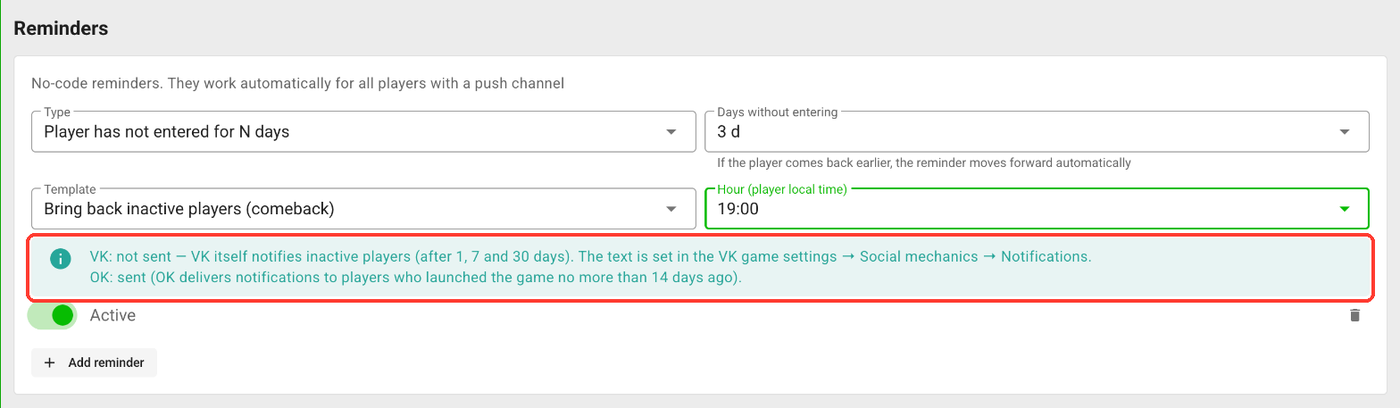
| Player has not entered for N days | The player has not entered the game for N days (1–30). If the player comes back earlier, the reminder moves forward automatically | Number of days, template, hour in the player's local time |
Add reminders in Notifications → Settings → Reminders. For the Player has not entered for N days reminder choose the number of days, the template and the hour; the panel warns which platforms send such reminders themselves.
In reminder templates you can use these variables besides {player.name}:
| Variable | Reminder | Value |
|---|---|---|
{scheduler.day} or {day} | Daily reward, streak | Day of the reward that waits for the player (after today's reward was claimed — the next one) |
{scheduler.days} or {days} | Daily reward, streak | Number of days in the scheduler |
{days} | Player has not entered for N days | N |
{day} and {days} are also available as {variables.day} and {variables.days}, so one template works both for reminders and for gp.notifications.schedule() with variables: { day }.
When all days of the scheduler are claimed, its reminders are cancelled.
- VK sends notifications to inactive players itself (after 1, 7 and 30 days; the text is set in the VK game settings → Social mechanics → Notifications → «Inactive users»). GamePush does not send such reminders on VK so players do not get duplicates.
- OK delivers notifications only to players who launched the game no more than 14 days ago, so on OK the reminder works for 1–14 days.
- Web Push, Android, Telegram, MSN have no such platform feature — the reminder works for any number of days.
Stay in Touch
Other documents of this chapter available Here. To get started, welcome to the Tutorials chapter.
GamePush Community Telegram: @gs_community.
For your suggestions e-mail: official@gamepush.com
We Wish you Success!