Campaigns
Campaigns are notifications that you send from the GamePush control panel without updating the game: news, events, sales, re-engagement of players who have left.
Create a Campaign
- Go to your project in the GamePush Panel, open Notifications > Campaigns.
- Create a campaign: choose the type, the template, the delivery mode and the audience.
- Check the estimated audience and send a test notification to test players.
- Launch the campaign. A new campaign is created as a draft and does not send anything until it is launched.
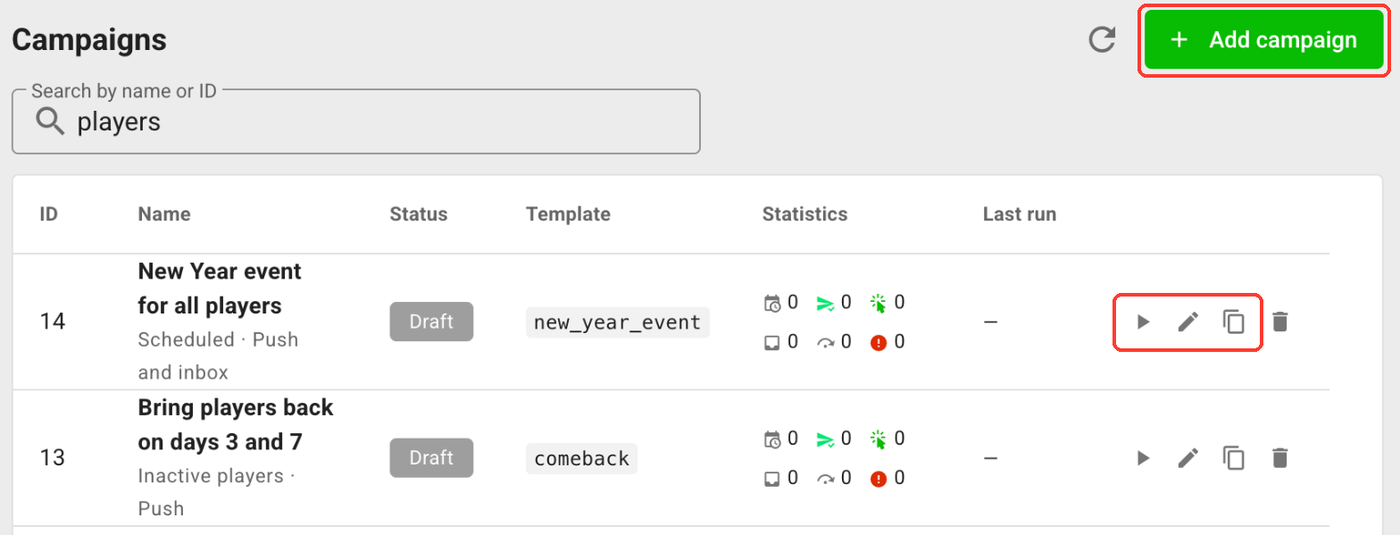
Campaigns are listed in Notifications → Campaigns: search by name or ID, launch, edit or copy a campaign.
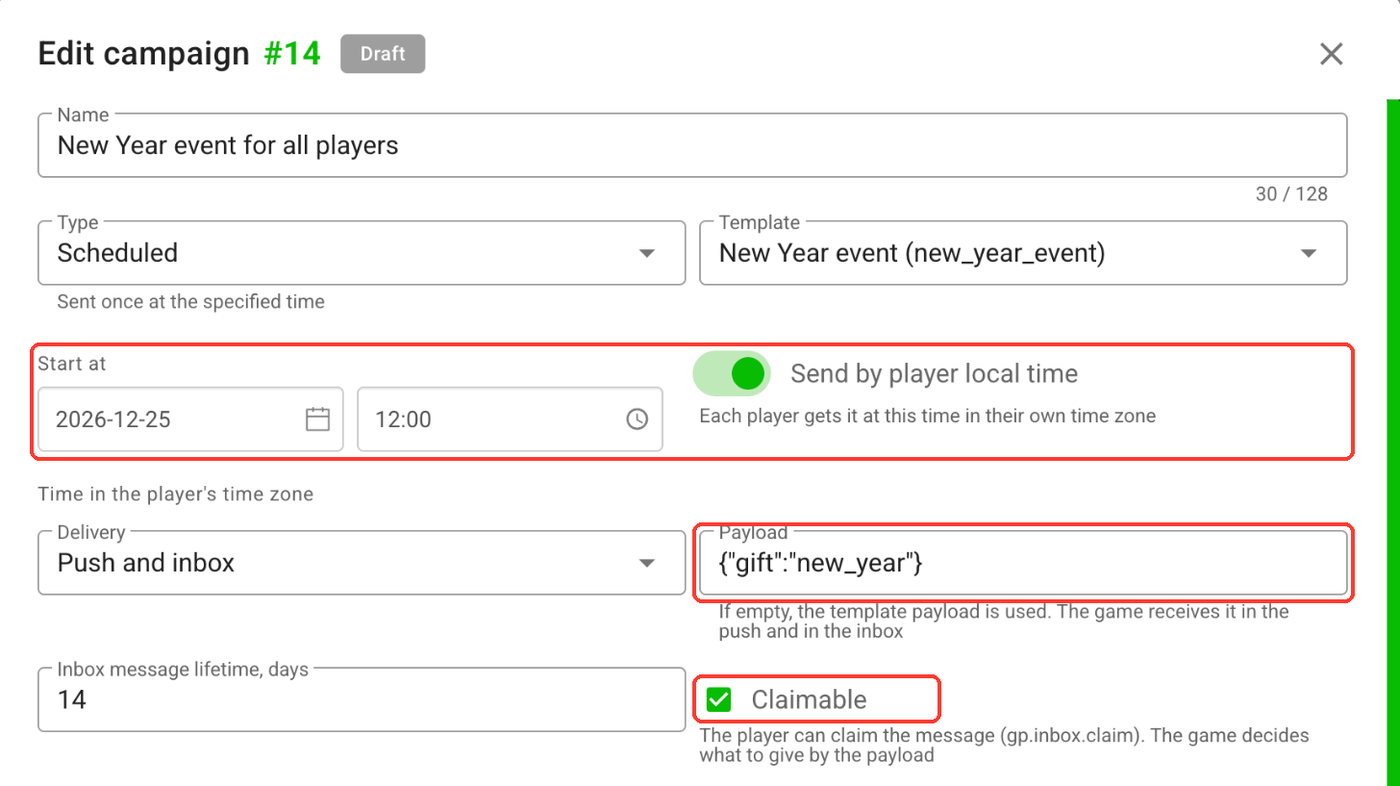
In the campaign editor choose the type, the template and the delivery mode. For scheduled campaigns the local time switch sends the push at the same hour in each player's time zone.
Campaign statuses:
- Draft — the campaign is being configured.
- Active — the campaign sends notifications.
- Paused — sending is suspended, you can resume it.
- Finished — the campaign has completed.
Campaign Types
| Type | When notifications are sent |
|---|---|
| Instant | Right after launch |
| Scheduled | At the specified date and time. With the local time option, each player receives it at this time in their own time zone |
| Recurring | Regularly on the selected days of the week at the specified time. If no days are selected — every day |
| Inactive players | When the player has not entered the game for the specified number of days, for example on days 1, 3 and 7 (from 1 to 60 days). Sent at the specified hour of the player's local time, 18:00 by default. If the player returns to the game before that, the push is skipped |
The Inactive players campaign is the main tool to bring back players. Create a chain of messages: a reminder on day 1, a gift on day 3, a big gift in the inbox on day 7.
With inbox-only delivery, an inactive player can see the message when they return before it expires. This works for compensation and gifts.
Delivery Modes
Choose the mode in the Delivery field:
| Mode | Where the message goes |
|---|---|
| Push | Push notification only |
| Inbox | Inbox only |
| Push and inbox | Push notification and inbox |
| Inbox if no push channel | Push notification. If the player has no push channel — inbox |
Payload of the campaign replaces the template payload both in the push and in the inbox message. If empty, the template payload is used. The game receives it in gp.notifications.launchPayload when the player opens the game from the push, and in message.payload in the inbox. For example, describe a gift in it — {"gold":500} — and enable Claimable, so the player can claim the message.
For messages in the inbox you can also set:
- Claimable — the player can claim the message (
gp.inbox.claim). The game decides what to give by the payload. More - Inbox lifetime — how many days the message is stored in the inbox: 14 days by default, from 1 to 90.
Use the Inbox or Inbox if no push channel mode to reach players on platforms without push notifications.
Audience
Choose who receives the campaign. All conditions are combined:
- Platforms — for example, only VK and OK. Custom platforms of the project are listed one by one by tag (as in Public Zone → Published on Platforms), so you can send a campaign to a single site.
- Languages — players with the selected game languages.
- Segments — players in the selected segments.
- Conditions — conditions on player fields, for example
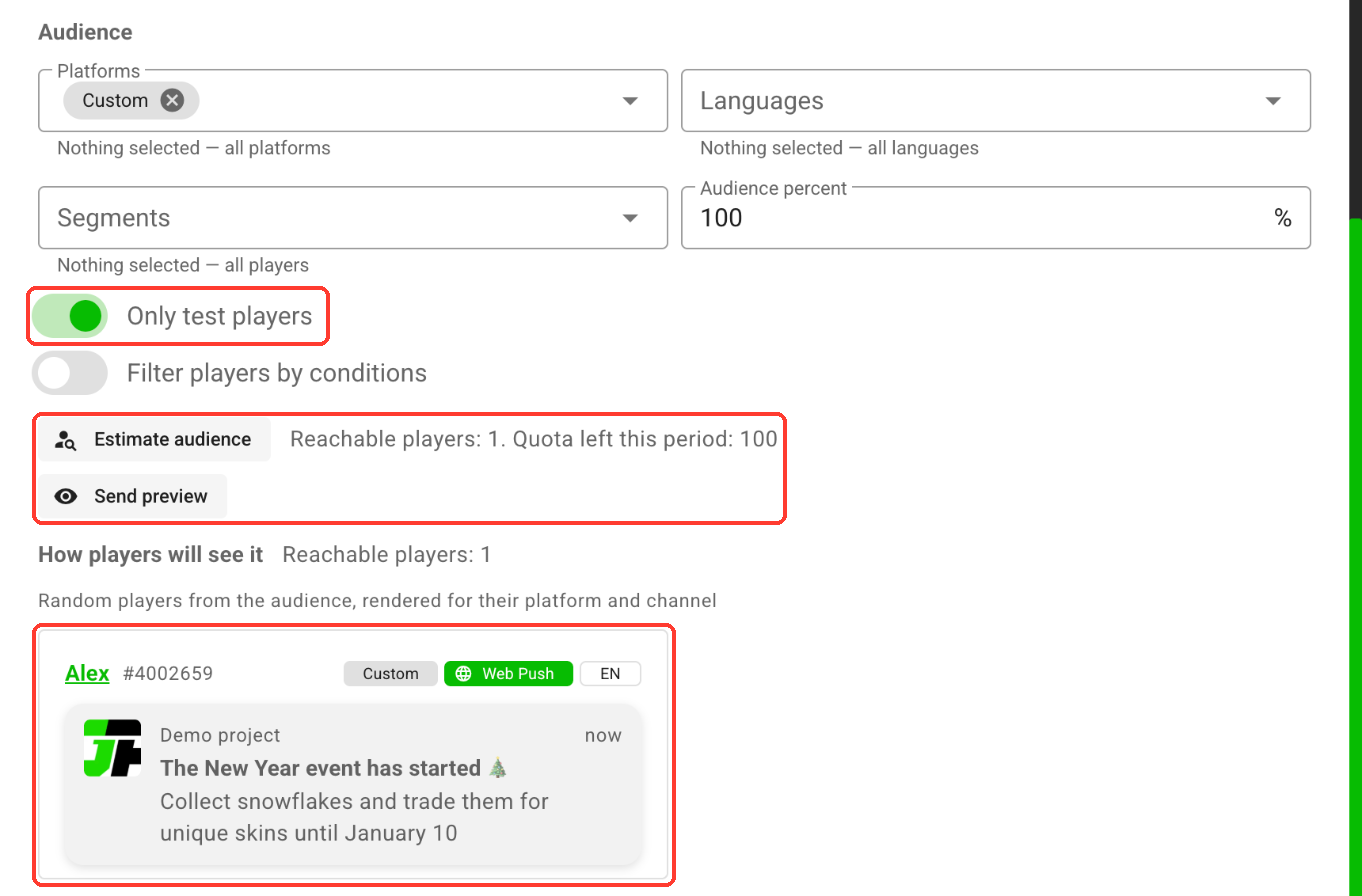
level >= 10or "made a purchase". - Test players only — send only to test players. Use it to check the campaign.
- Percent of the audience — from 1 to 100. Send to a part of the audience, for example to test a text on 10% of players.
Before launching, the panel shows the estimated audience: how many players have a push channel, and how many pushes are left in the current period of your plan.
Testing
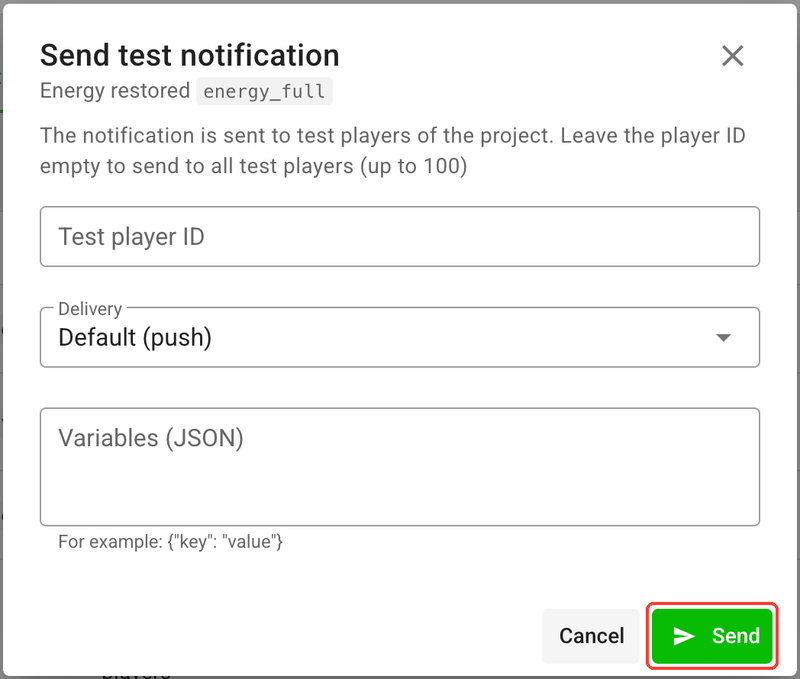
- Send a test notification of a template to a test player or to all test players of the project (up to 100).
- Test players receive notifications on any plan, including Release and Premium. See limits.
- Mark a player as a test player in the player card or play from a test site.
The test send dialog: enter the ID of a test player or leave it empty to send to all test players. Pass variables as JSON if the template uses them.
Statistics
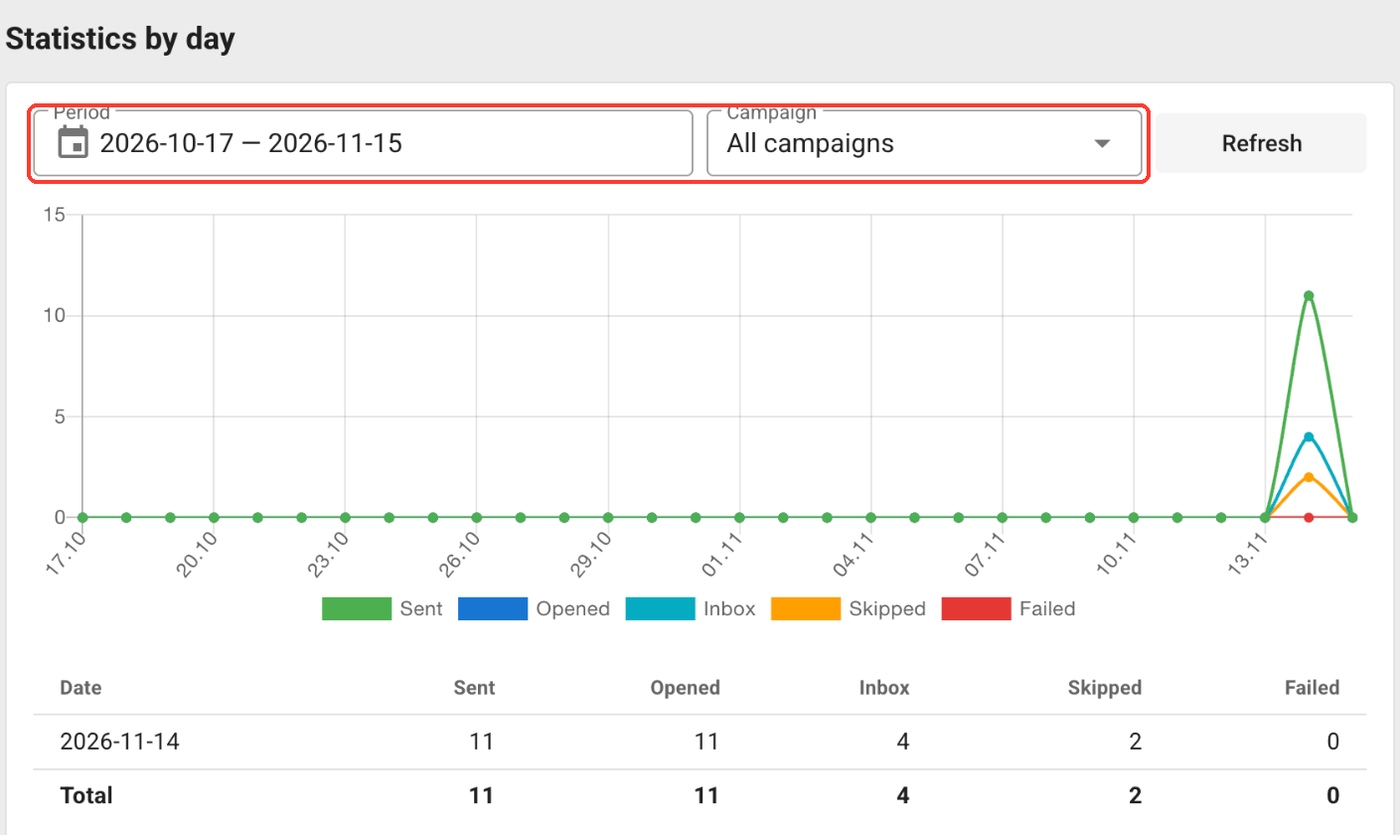
For each campaign and for the project as a whole, statistics by day are available:
| Metric | Meaning |
|---|---|
| Planned | Notifications planned for sending |
| Sent | Delivered pushes |
| Skipped | Not sent and not charged. Reasons |
| Failed | Platform returned an error. Not charged |
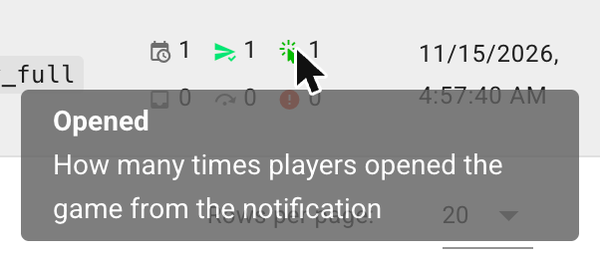
| Opened | The player opened the game from the notification |
| Inbox | Messages put into the inbox |
For an instant or scheduled inbox-only broadcast, the campaign page counts each player once per metric.
- Sent — the API returned the message in the player’s inbox or the SDK acknowledged it during play.
- Opened — the built-in SDK inbox marked a loaded message as read, the game called
gp.inbox.read(), or the player claimed the reward. - Claimed — the server confirmed the reward claim during player sync. Messages without a reward show zero.
Planned, skipped and failed show a dash. For inbox-only broadcasts the server checks eligibility when retrieving the message and does not queue individual deliveries.
Viewing a player’s inbox in the dashboard and fetching the unread count leave these totals unchanged. The individual delivery log is hidden for inbox-only broadcasts.
Hover over a number in the campaign list to see what it means.
The Statistics tab shows the chart by days for the selected period, for the whole project or for one campaign.
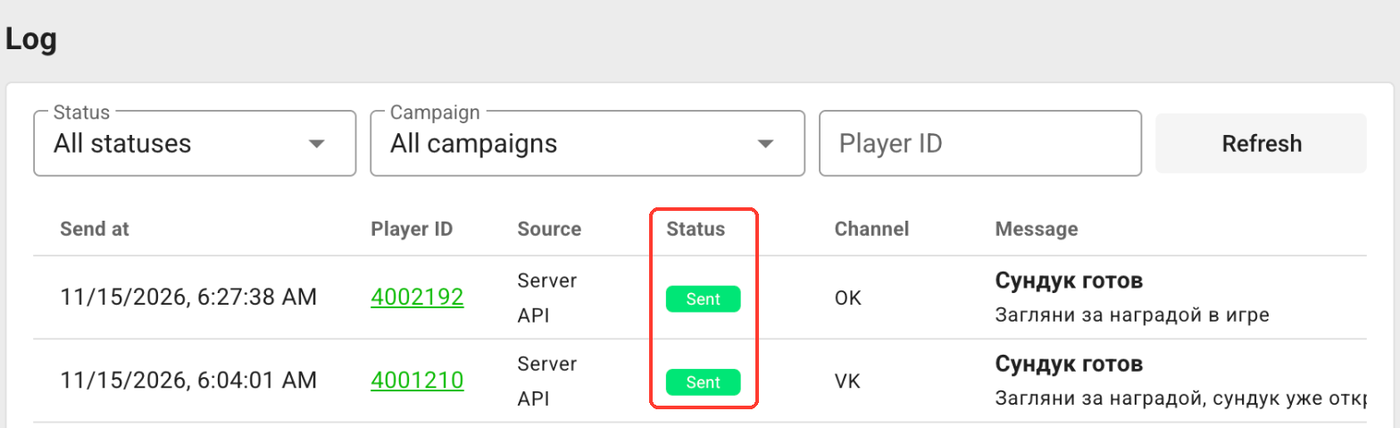
The delivery log of each notification is also available: when it was sent, through which channel, and why it was skipped or failed. You can filter the log by player, campaign and status.
Stay in Touch
Other documents of this chapter available Here. To get started, welcome to the Tutorials chapter.
GamePush Community Telegram: @gs_community.
For your suggestions e-mail: official@gamepush.com
We Wish you Success!