Permissions and Delivery
How to ask the player for permission to receive notifications and how to handle the game launch from a notification.
List of Methods
Actions:
gp.notifications.requestPermission()- request permission to send notifications. FREEgp.notifications.preview()- see how a notification will look for the current player. FREE
Properties:
gp.notifications.ready- promise, resolves when the SDK has detected what the platform supports. FREEgp.notifications.isAvailable- can notifications be used right now. FREEgp.notifications.canRequest- can the permission be requested right now. FREEgp.notifications.channel- delivery channel on the current platform. FREEgp.notifications.isEnabled- are notifications enabled in the project. FREEgp.notifications.permission- current permission status. FREEgp.notifications.serviceWorkerPath- path to the Web Push service worker on your domain. FREEgp.notifications.launchPayload- payload of the notification from which the game was opened. FREEgp.notifications.launchId- ID of the notification from which the game was opened. FREE
Events:
gp.notifications.on('permission')- permission request finished. FREEgp.notifications.on('error:permission')- failed to request permission. FREEgp.notifications.on('open')- the game was opened from a notification. FREE
Check Availability
FREE// Wait until the SDK detects what the platform supports
await gp.notifications.ready;
// Can notifications be used right now
gp.notifications.isAvailable;
// Can the permission dialog be shown right now
gp.notifications.canRequest;
// Delivery channel: 'VK', 'OK', 'TELEGRAM', 'MSN', 'WEB_PUSH', 'FCM' or null
gp.notifications.channel;
// Notifications are enabled in the project settings
gp.notifications.isEnabled;
ready— the SDK detects the platform features in the background, andgpis ready earlier. If you check notifications right at the start, wait forreadyfirst. For example, a game in an iframe on your site first asks the host page.isAvailabletakes everything into account: whether the platform has push notifications, whether they work in the current environment (for example, not in a regular Safari tab on iPhone) and whether notifications are enabled in the project. WhenisAvailableisfalse, use the inbox.canRequestisfalsewhen the permission is already granted, the player has already declined it, or the platform does not allow asking right now. Show your soft ask only whencanRequestistrue.channelisnullwhenisAvailableisfalsebecause of the platform or environment.isEnabledshows only the project setting. When notifications are disabled in the project,isAvailableandcanRequestarefalse. See Notifications Disabled in the Project.
Supported Platforms
 VK Games
 OK Games
 Telegram
 MSN
 Web (custom site)
 Google Play
 Android (alternative stores)
Platforms without support
 CrazyGames
 GamePix
 GameDistribution
 GameMonetize
 SmartMarket
 VK Play
 Yandex Games
 WG Playground
 Kongregate
 PlayDeck
 beeline
 Fotostrana
 Y8
 CoolMathGames
 Pikabu Games
 Partner's platforms
 Moi Mir
| Channel | Platform | Player consent | What you need to set up |
|---|---|---|---|
| VK | VK Games | VK "Allow notifications" dialog | Service key of the app in the VK platform settings |
| OK | OK Games | No separate request, notifications are allowed by default | Public key and secret key of the app in the OK platform settings |
| Telegram | Telegram | Telegram "Allow the bot to message you" dialog | Bot token (secret key) and game link in the Telegram platform settings |
| MSN | MSN | MSN Games and browser permission | For pushes from the server: Game ID and MS Start API Key in the MSN platform settings, otherwise delivery fails with msn_game_id_missing / msn_api_key_missing. Scheduling on the device with title and text needs nothing |
| Web Push | Custom sites | Browser permission on your site | External SDK and service worker on your site |
| FCM | Android apps | Android POST_NOTIFICATIONS permission | google-services.json for the build and a Firebase service account |
Some platforms do not support push notifications. On these platforms use the inbox: gp.notifications.isAvailable is false there, and campaigns with the Push and inbox or Inbox if no push channel delivery put messages into the inbox instead.
Permission Status
FREE// 'granted' | 'denied' | 'default' | 'unknown'
gp.notifications.permission;
| Value | Meaning |
|---|---|
'granted' | The player allowed notifications |
'denied' | The player declined notifications |
'default' | The player has not been asked yet |
'unknown' | The platform does not report the status |
Request Permission
FREEawait gp.notifications.requestPermission();
if (gp.notifications.permission === 'granted') {
// The player will receive notifications
}
The SDK shows the platform's permission dialog and sends the result and the player's address (subscription, token) to GamePush. After that GamePush can deliver pushes to the player.
Call requestPermission() only after a player action, for example a button click. Browsers block permission dialogs that are not caused by the player. Read the permission best practices.
How the permission is requested on each platform:
| Platform | What happens |
|---|---|
| VK Games | VK shows the "Allow notifications" dialog. If the player has already allowed notifications for the game, the status is 'granted' at startup |
| OK Games | There is no separate dialog, the permission is considered granted |
| Telegram | Telegram asks the player to allow the bot to send messages. If the player has already allowed it, the status is 'granted' at startup |
| MSN | The permission is requested by MSN Games and the browser |
| Custom sites | The browser shows the dialog on the host page. Requires the Web Push setup |
| Android | Android shows the system POST_NOTIFICATIONS dialog (Android 13+) |
The method returns the permission status, the same as gp.notifications.permission:
const permission = await gp.notifications.requestPermission();
Subscribe to events:
// Permission request finished: comes after every successful requestPermission() call,
// even if the status has not changed
gp.notifications.on('permission', (permission) => {
    console.log('Permission:', permission);
});

// Failed to request permission
gp.notifications.on('error:permission', (error) => {
    console.warn('Failed to request permission', error);
});
If notifications are not available on the platform, requestPermission() is rejected with the notifications_not_available error. Other codes are listed in Errors.
Service Worker Path
For Web Push on your own domain the SDK registers the service worker /gp-sw.js (see Web Push on Your Site). If the file is in another place, set the path in one of the ways:
// Before the request
gp.notifications.serviceWorkerPath = '/push/gp-sw.js';

// Or right in the request
gp.notifications.requestPermission({ serviceWorkerPath: '/push/gp-sw.js' });
You can also pass the swPath parameter in the URL of the SDK script. An empty value resets the path to /gp-sw.js. When the game is in an iframe on your site, the path is set on the host page in sdk.notifications.init({ swPath }).
Opening the Game from a Notification
FREEWhen the player taps a notification, the game starts and the SDK reads the notification data from the launch parameters. When notifications are enabled in the project, the SDK sends it with the first player sync: GamePush marks the notification as opened (opens are shown in statistics) and returns its payload in the same response — opening costs no extra request.
// Payload of the notification from which the game was opened.
// Empty if the game was not opened from a notification
const payload = gp.notifications.launchPayload;

if (payload) {
    myGame.handleNotification(payload);
}
The payload is a string. It comes from:
- the
payloadpassed togp.notifications.schedule(), to chatnotificationOptionsor to the server API; - the payload field of the template, if no payload was passed.
The open event comes when a notification is opened while the SDK is running, for example a Web Push notification is clicked while the game tab is open:
gp.notifications.on('open', ({ id, payload }) => {
    // id - notification ID
    // payload - payload of the notification
    myGame.handleNotification(payload);
});
Deep Links
Use the payload to open the right screen. For example, store JSON in the payload:
gp.notifications.schedule({
    tag: 'BUILDING_READY',
    template: 'BUILDING_READY',
    delay: 2 * 60 * 60,
    payload: JSON.stringify({ screen: 'city', buildingId: 42 }),
});
And handle it on launch:
function handleNotification(payload) {
    let data;
    try {
        data = JSON.parse(payload);
    } catch (err) {
        return;
    }

    if (data.screen === 'city') {
        myGame.openCity({ focusBuilding: data.buildingId });
    }
}

if (gp.notifications.launchPayload) {
    handleNotification(gp.notifications.launchPayload);
}

gp.notifications.on('open', ({ payload }) => handleNotification(payload));
VK and OK do not pass the payload into the game, so the SDK gets it from the server, and launchPayload works there too.
- VK can pass a notification ID (
ref_notification_id). GamePush uses it to find the exact push and its payload. When VK passes only a notification source, such asvk_ref=56on desktop, GamePush uses the most recent unopened push delivered to this player in the project within the past 72 hours. If there is no matching push, the payload is empty. - OK does not pass the notification ID, only the launch source (
vk_ok_ref, for examplepassive_simple_app_notification). The SDK detects a launch from a game notification and uses the payload of the last push delivered to the player. OK's own reminders («continue playing», recommendations) are not counted as opens.
Telegram
In Telegram a notification arrives as a message from the bot with a Play button. The button opens the game and passes the notification ID and payload to it.
The button appears only if the Link to the game on the platform field is filled in the Telegram platform settings. Without the link the bot sends text only: the player cannot open the game from the notification, and opens are not counted in the statistics.
Set a direct link to the Mini App with the game:
https://t.me/<bot>if the game is the bot's main Mini App (the Open button in the bot profile);https://t.me/<bot>/<short_name>if the game is a separate Mini App created with the/newappcommand in @BotFather.
GamePush adds the startapp parameter with the notification ID and payload to the link. If the payload does not fit into the link (startapp is limited to 512 characters), the SDK gets it from the server. The Mini App must belong to the same bot whose token is set in the platform settings.
The button variable in the template variables sets the button text, for example { "button": "Claim the gift" }. Without the variable the button says "Play" in the player's language.
Keep the payload short. Platforms limit the length of the launch link.
Delivery
- GamePush delivers pushes only to players who have a push channel and gave permission.
- For VK, OK, Telegram and MSN the player's channel is registered automatically when the player enters the game. For Web Push and Android, the channel is registered after
requestPermission(). - Each push is delivered through one channel per player, chosen by priority: the platform channel (VK, OK or MSN) → Telegram → FCM → Web Push.
- You can see the delivery log of a player and the reason for each skipped notification in the control panel.
Quiet Hours
- A push that falls into quiet hours is postponed until the quiet hours end.
- Quiet hours are calculated in the player's time zone. On VK and OK, if the player's time zone is unknown, Moscow time is used; on other platforms — UTC.
- Personal notifications that would be delayed by more than 24 hours are skipped.
- Test pushes ignore quiet hours.
Skipped Notifications
A push is skipped — not sent and not charged — if:
- the player is online (for personal notifications, with the Skip if online option);
- the player has returned to the game (for Inactivity campaigns);
- the daily limit per player or platform limits are exceeded;
- the monthly limit of your plan is reached.
Only delivered pushes are charged: skipped notifications and failed deliveries are not billed.
Testing during development
In dev mode (gp.isDev: the game is opened from an origin marked as test in the project settings) notifications are simulated in the devtools overlay instead of real delivery — the same way payments and ads are emulated. No separate test methods are needed: call the regular API.
// in dev mode it is not sent to the server:
// the template is rendered for the current player and the notification appears on the page in 60 seconds
gp.notifications.schedule({
    tag: 'ENERGY_FULL',
    template: 'energy_full',
    delay: 60,
    payload: 'screen=shop',
});
- At the planned time the notification appears at the top center of the page, like on a phone. Several notifications stack: tap the stack to expand it, scroll and tap the one you need.
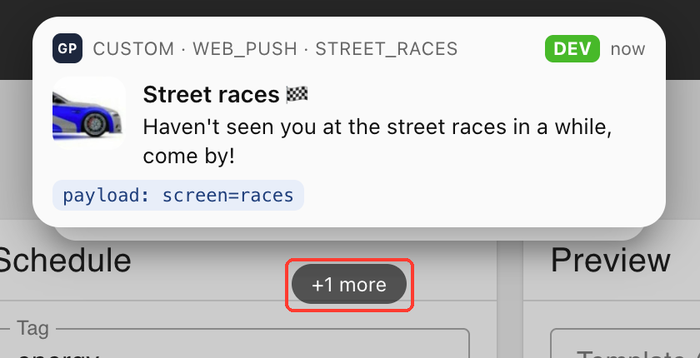
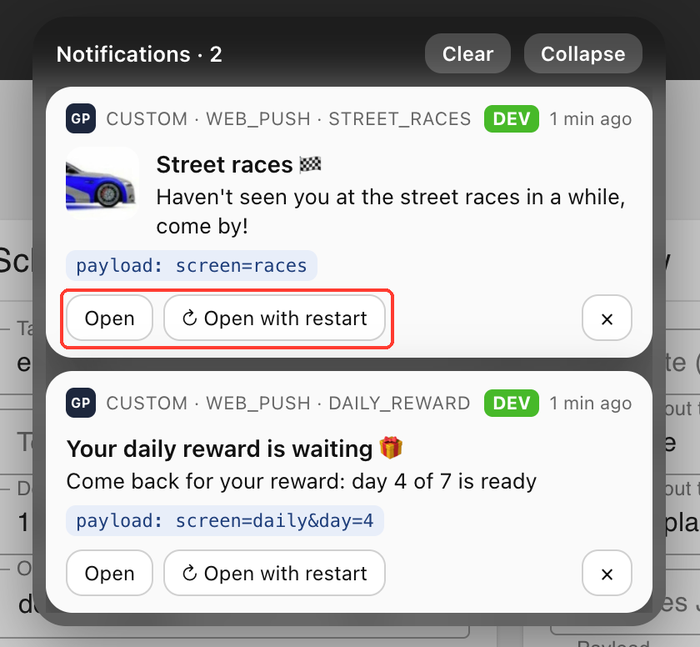
- The card shows the template icon, the rendered title and text, and the payload.
- Open — the game receives the
openevent (as if the notification was tapped while the game is running). - Open with restart — the page restarts with
gp_n/gp_payload, the full launch path: checklaunchPayload/launchIdon start. - Dev notifications have
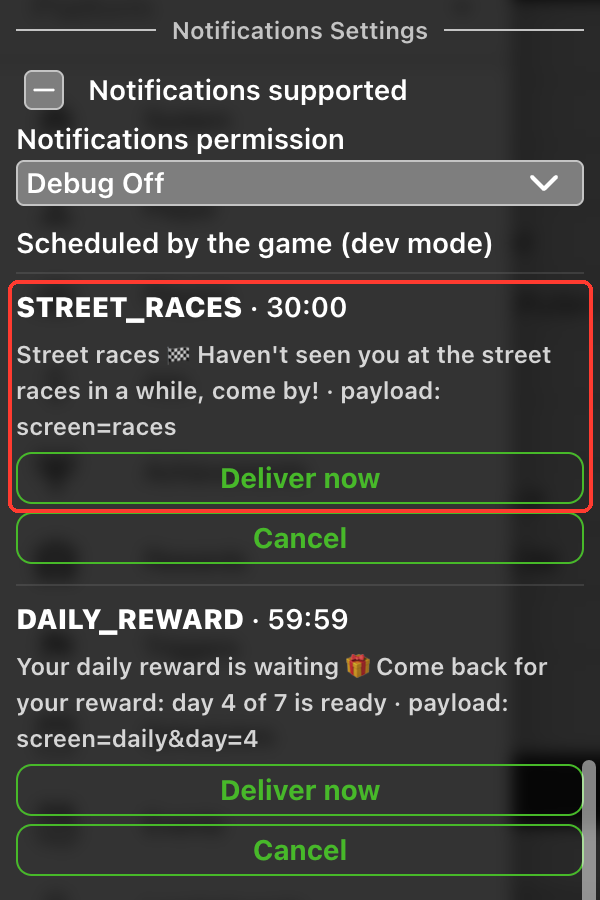
isTest: trueand IDs starting withdev:; they are not counted in statistics and are not charged. - Pending dev notifications are listed in the devtools panel (Notifications block) with a Deliver now button — no need to wait for the delay. They are kept in the browser, so a page reload does not lose them, like real notifications while the game is closed.
- Template checks are the same as in production: the template must exist and have Allow using the template from SDK enabled.
The overlay only emulates delivery: real delivery through VK, OK, Telegram, Web Push and FCM is done by GamePush. To see how a template will look for the current player, use gp.notifications.preview(); for several players of the audience, use the campaign send preview in the control panel.
For QA all methods (permission, scheduled notifications, preview, inbox, chat with notificationOptions) are collected on the Notifications page of the GamePush Sandbox.
Preview a Notification
FREECheck a template before you send it: the text in the player's language with the variables filled in, how the platform will show it, and which variables are empty. Nothing is sent, and the request is free.
const preview = await gp.notifications.preview({
    template: 'ENERGY_FULL',
    variables: { energy: 100 },
});

if (preview.missingVariables.length) {
    console.warn('Empty variables:', preview.missingVariables);
}
Without a template, pass your own title and text:
const preview = await gp.notifications.preview({
    title: 'Energy is full',
    text: '{player.name|Hero}, time to play!',
});
Parameters:
| Parameter | Type | Description |
|---|---|---|
template | string | Template tag or ID. If not passed, title and text are used |
title | string | Title without a template |
text | string | Text without a template |
variables | object | Template variables. More |
payload | string | Payload. If not passed, the template payload is used |
Result:
| Field | Type | Description |
|---|---|---|
playerId | number | Player ID |
playerName | string | Player name |
platform | string | Player platform |
channel | string | null | Delivery channel. null — the player has no push channel, only the inbox |
lang | string | Language of the text |
title | string | Title with variables |
text | string | Text with variables |
displayTitle | string | Title as the platform shows it. VK and OK show one line «title — text» |
displayText | string | Text as the platform shows it |
truncated | boolean | The text is cut to the platform limit |
icon | string | Icon |
image | string | Image |
payload | string | Payload |
missingVariables | string[] | Variables without a value and without a default |
If the template is not found, the promise is rejected with the notification_template_not_found error.
Notifications Disabled in the Project
When notifications are disabled in the project settings, or the account plan is below Start, the game code keeps working without errors (test players are not affected: for them notifications always work):
isAvailableandcanRequestarefalse.requestPermission()does not show the dialog and resolves with the current status.- Player contacts are not saved. After you enable notifications (or upgrade the plan), the SDK registers the contact on the player's next launch.
- The SDK sends no notification requests on start and does not check the platform. A launch from a notification is not processed: the
openevent does not fire, butlaunchPayloadandlaunchIdare still read from the launch parameters. schedule()resolves withnulland fireserror:schedulewith thenotifications_disablederror. Check the result before reading its fields:
const notification = await gp.notifications.schedule({
    tag: 'ENERGY_FULL',
    template: 'ENERGY_FULL',
    delay: 30 * 60,
});

if (notification) {
    console.log('Scheduled at', notification.sendAt);
}
Errors
Error codes of gp.notifications. They come in the rejected promise and in the error:* events.
| Error | What it means |
|---|---|
notifications_not_available | Notifications are not available on this platform or in this environment. Check isAvailable |
notifications_disabled | Notifications are disabled in the project settings |
wrong_tag | tag is not passed in schedule() or cancel(), or it starts with the reserved reminder:, chat: or inactivity: |
wrong_time | Neither delay nor at is passed, delay is negative or at is not a date |
notification_template_not_found | The template is not found. In schedule() also when the template is not passed and the notification is not scheduled on the device |
notification_template_not_allowed_from_players | The template does not have the Allow from players option |
notification_bad_delay | The send time is earlier than in 60 seconds or later than in 30 days, or at is not in the 2026-12-31T18:00:00Z format |
notification_too_many_pending | The player already has 16 pending tags |
vapid_key_missing | Web Push: the SDK did not get the VAPID key of the project |
host_not_responding | Web Push in an iframe: the host page with the external SDK did not respond in time |
Stay in Touch
Other documents of this chapter available Here. To get started, welcome to the Tutorials chapter.
GamePush Community Telegram: @gs_community.
For your suggestions e-mail: official@gamepush.com
We Wish you Success!