Web Push on Your Site
Web Push lets you send notifications to players of your game on a custom site. Notifications come from your domain, even when the game tab is closed.
Requirements
- The game is embedded on your site with the external SDK, or the game itself is opened on your domain without an iframe (see below).
- The site works over HTTPS.
- The domain of the site is added to Allowed origins of the project.
- You can place a service worker file in the root of the site.
Web Push is never registered on GamePush hosting domains (s3.gamepush.com and others). The subscription belongs to the domain of the page where it was created, so it is possible only on your own site.
Setup
1. Add the Service Worker
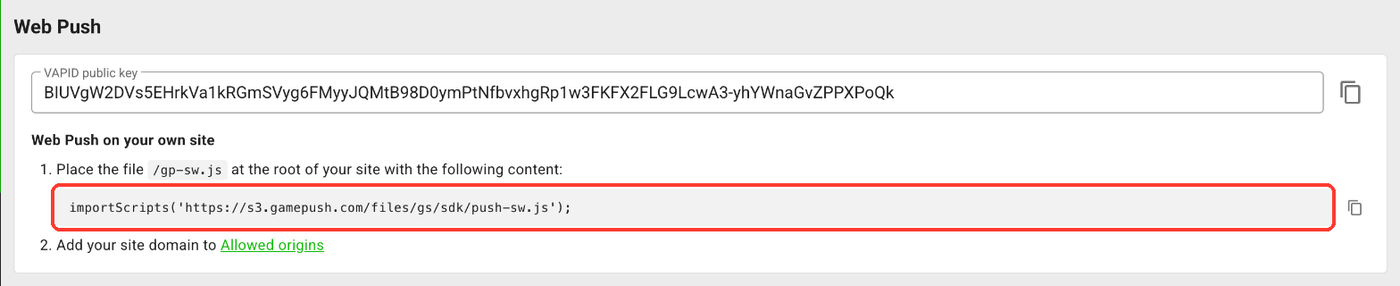
Create the file /gp-sw.js in the root of your site with one line:
importScripts('https://s3.gamepush.com/files/gs/sdk/push-sw.js');
The service worker receives pushes and shows notifications. When the player clicks a notification, it opens the game page and passes the notification data to the game.
Place the file in the root of the site, so the service worker controls all pages of the site. The path to the file is passed in swPath below.
The same line and the VAPID key of the project are shown in Notifications → Settings → Web Push.
2. Initialize Notifications in the External SDK
On the game page, before the external SDK script, define window.onGSExternalSDKReady and call sdk.notifications.init:
<iframe
    src="https://s3.gamepush.com/games/10/v4/?_platform=custom&_platform-key=my_platform"
    frameborder="0"
    width="100%"
    height="100%"
></iframe>

<script>
    window.onGSExternalSDKReady = (sdk) => {
        sdk.notifications.init({ swPath: '/gp-sw.js' });
    };
</script>
<script src="https://s3.gamepush.com/files/gs/sdk/external-sdk.js"></script>
Options of sdk.notifications.init, all optional:
| Option | Type | Description |
|---|---|---|
swPath | string | Path to the service worker on your site, /gp-sw.js by default |
manifest | boolean | Add a web app manifest of the game if the page has none, so the site can be installed to the Home Screen. true by default |
manifestUrl | string | Your manifest URL instead of the GamePush one |
projectId | number | Project ID for the manifest. By default it is taken from the game |
prompt | object | Texts of the GamePush window { title, text, allow, deny } |
Browsers show the permission dialog only right after a click on the page. If at the moment of the request the browser does not see a recent click on your page, the external SDK first shows its own small window with the Allow and Not now buttons, and the browser dialog opens after Allow. Change its texts in prompt:
sdk.notifications.init({
    swPath: '/gp-sw.js',
    prompt: {
        title: 'Turn on notifications?',
        text: 'We will tell you when your crops are ready',
        allow: 'Turn on',
        deny: 'Later',
    },
});
By default the texts are in English or Russian, depending on the game language.
3. Add the Domain to Allowed Origins
Add your site to Allowed origins. Subscriptions from domains that are not in the list are not accepted.
4. Request Permission in the Game
Nothing else changes in the game code. Call gp.notifications.requestPermission() inside the game: the external SDK shows the browser dialog on your page and registers the subscription.
if (gp.notifications.isAvailable && gp.notifications.canRequest) {
    myGame.showSoftAsk(() => gp.notifications.requestPermission());
}
Game on Your Own Domain
If the game page is opened on your domain directly, not in an iframe, the external SDK is not needed. Place /gp-sw.js in the root of this domain, add the domain to Allowed origins and call gp.notifications.requestPermission() in the game. If the service worker is in another place, set the path in gp.notifications.serviceWorkerPath.
Play button
Every Web Push notification has a Play button in the player's language. It opens the game the same way as a click on the notification: with the notification ID and payload, so gp.notifications.launchPayload works. If the game is already open, the tab is focused and the game gets the open event.
To change the button text, pass the button variable in the template variables, for example { "button": "Claim the gift" }. The same variable sets the text of the Play button under Telegram messages.
Buttons are shown in Chrome, Edge and Opera on desktop and Android. Safari and Firefox show the notification without the button, a click on it still opens the game.
iOS and Safari
- On iPhone and iPad, Web Push works only on iOS / iPadOS 16.4+ and only if the site is installed to the Home Screen as a web app (PWA). In a regular Safari tab,
gp.notifications.isAvailableisfalse. - To let players install the site, it needs a web app manifest with
"display": "standalone". The external SDK adds the game manifest itself if the page has none (themanifestoption). On your own domain without an iframe, add the manifest yourself. - On macOS, Safari 16+ supports Web Push in regular tabs.
Checklist
/gp-sw.jsopens athttps://your-site.com/gp-sw.js.onGSExternalSDKReadyis defined before the external SDK script is loaded.- The domain is in Allowed origins.
- The page is opened over HTTPS, not in a private window.
- The player clicked a button before
requestPermission()was called. - Notifications are enabled in the project settings.
Stay in Touch
Other documents of this chapter available Here. To get started, welcome to the Tutorials chapter.
GamePush Community Telegram: @gs_community.
For your suggestions e-mail: official@gamepush.com
We Wish you Success!