Menus
Menus are the main way players move between pages, collections, games, and other storefront sections. Open Menus and choose Aside or Footer; both are configured as ordered lists of destinations.
Add menu items
Click Add and select the item type:
- page;
- collection;
- game;
- category;
- tag;
- external link.
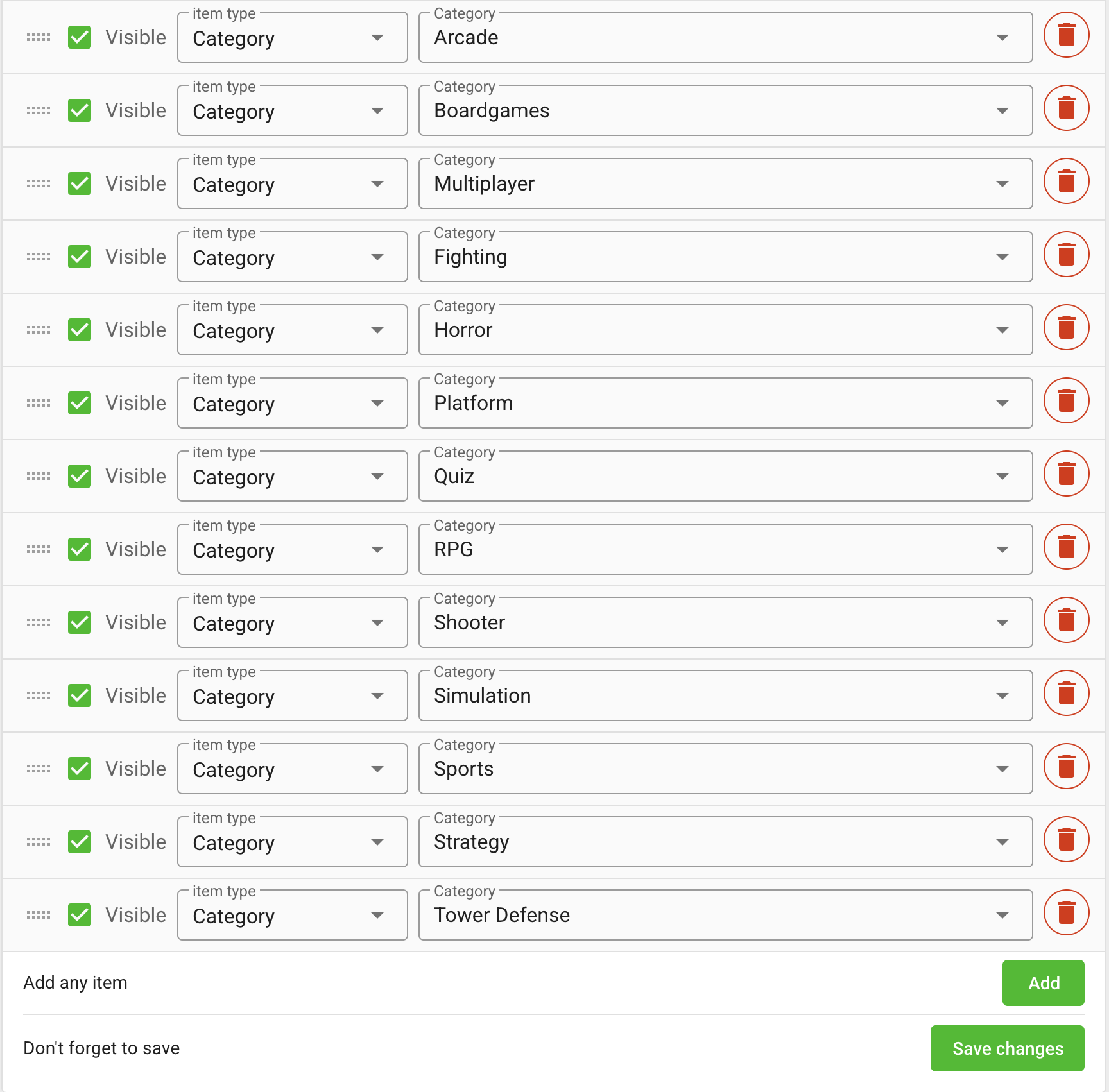
For an entity item, select an existing entity from the corresponding list. The site displays the name, URL, and icon configured for that entity.
For Link, enter a full HTTP or HTTPS URL. Expand the link row to set its localized name and a custom 64 × 64 menu icon.
Arrange and hide items
- Drag rows to change their order.
- Use Visible to hide an item without deleting its configuration.
- Use the trash button to remove the item from that menu.
Click Save changes after editing the list. Sidebar and footer are saved separately, so repeat the process for both menus when necessary.
An item that points to an unpublished or deleted page, collection, game, category, or tag cannot lead to valid content. Update menu references whenever you remove entities from the site.
The footer itself must also be enabled in Branding with Show custom footer.