Managing Games
Use this section to decide which catalog games belong to the platform and which of them players can currently discover and launch.
Games have two separate states on a platform:
- Added means that the platform has its own copy of the game card and build reference.
- Published means that players can discover the game and the White-label API can return it when requesting published games.
Adding a game does not replace publishing it.
Before you start
- Open Platforms.
- Select the platform you want to manage.
- Use All Games to find games available for the platform, and Games to manage games already added to it.
Add a game
- Open All Games.
- Select the required service provider tab when more than one provider is available.
- Find the game using search or filters.
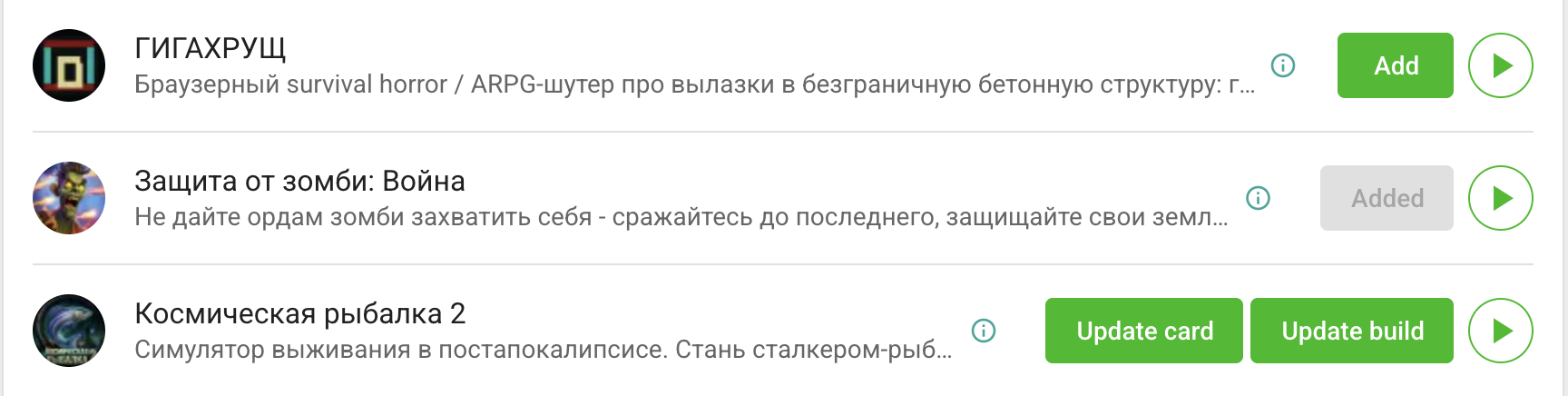
- Click Add on the game card.
- Open Games and publish the game when it is ready for players.
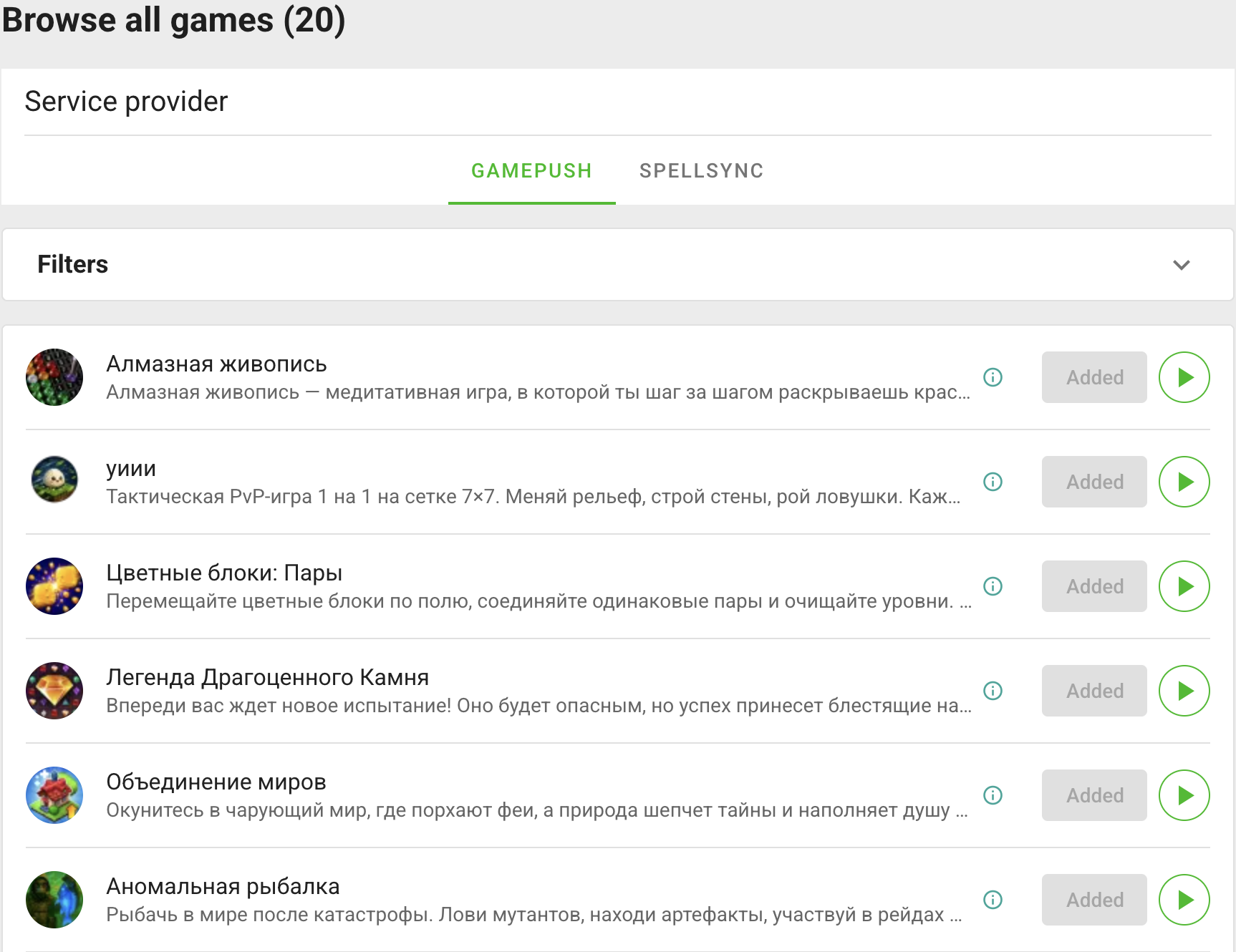
The Added label confirms that the game is attached to the platform. It may still be hidden until you publish it.
Publish or unpublish a game
Open Games and find the required game.
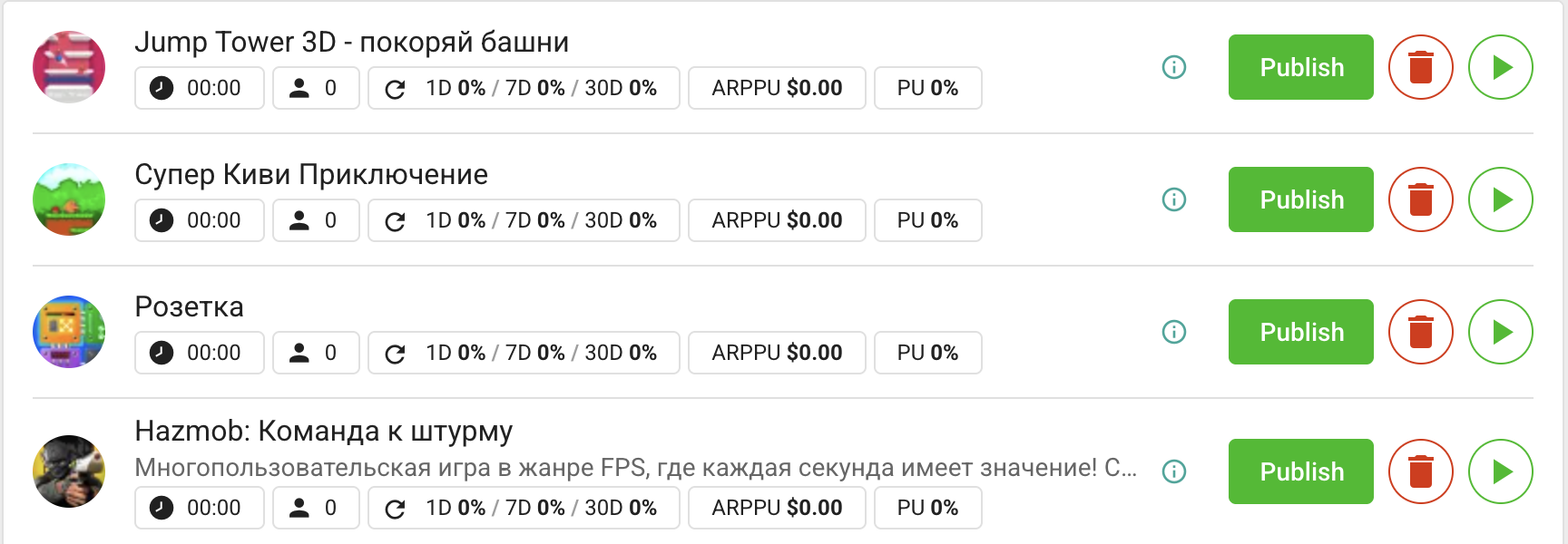
- Click Publish to make an unpublished game available to players.
- Click Unpublish to make the game unavailable to players without removing it from the platform.
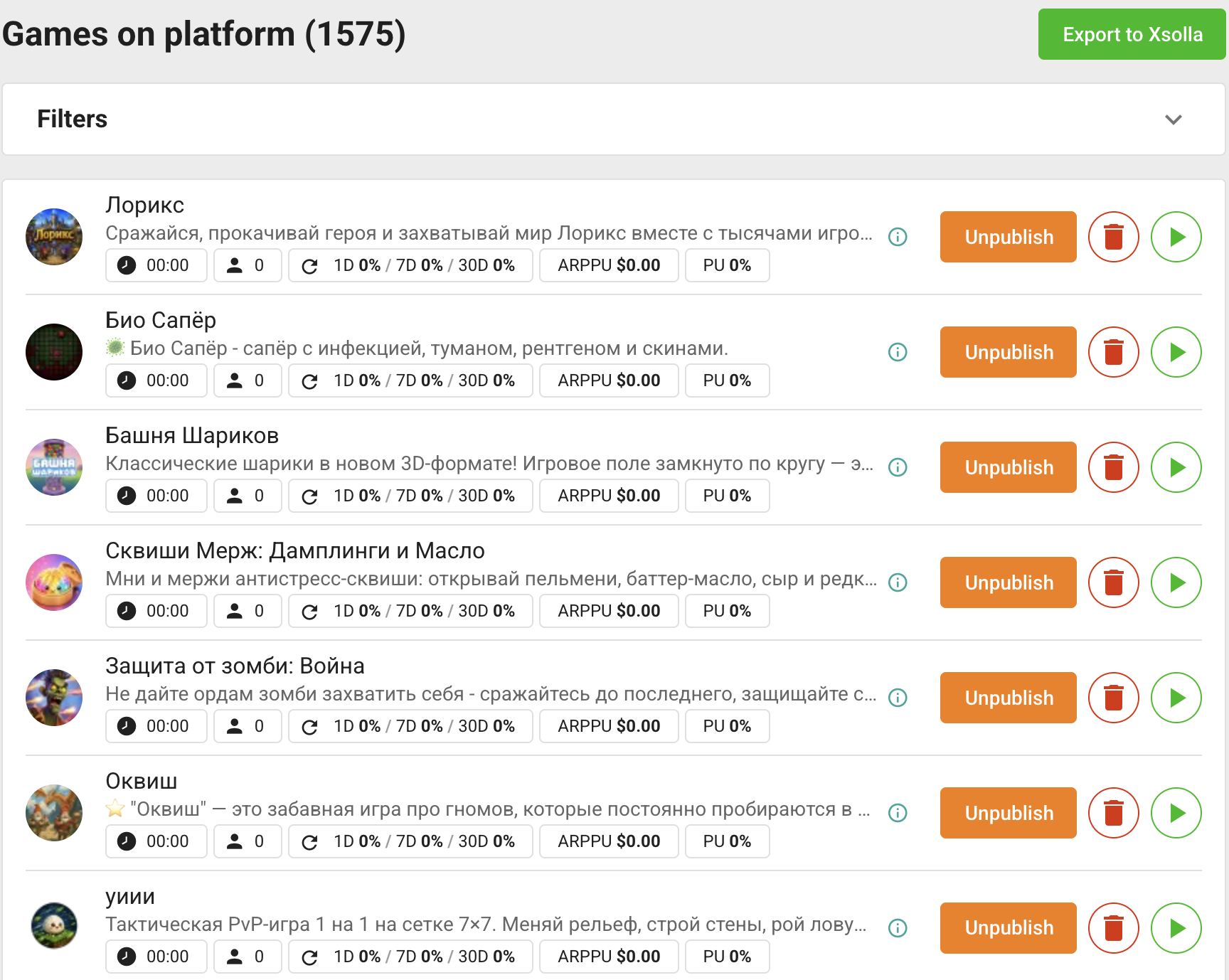
Unpublishing is reversible. The platform keeps the game settings, and you can publish the game again later.
Update a game
There are two update actions in All Games:
- Update card copies the current game content and promotional data to the platform.
- Update build switches the platform to the current game build.
In Games, expand a game card to edit its platform-specific content, banners, and triggers. Save the form before opening another game; otherwise, the panel asks whether to discard the unsaved changes.
Remove a game from the platform
- Open Games.
- Click the trash icon on the game card.
- Confirm the removal.
Removing deletes the platform's game entry and removes its item from the platform menu. It does not delete the original game project. To make a game temporarily unavailable, use Unpublish instead.
Action summary
| Action | Visible to players | Remains on the platform | Reversible without adding again |
|---|---|---|---|
| Add | No, until published | Yes | Yes |
| Publish | Yes | Yes | Yes |
| Unpublish | No | Yes | Yes |
| Remove | No | No | No |
Troubleshooting
The game is added but does not appear on the site
Open Games and check that the game is published. Also check site filters, collections, and target operating system if the game should appear in a specific list.
The site shows an old card or build
Open All Games. Use Update card when the content version changed and Update build when the build version changed.