Pages
Pages assemble the player-facing storefront from game lists and ordinary content. Use this section to create site routes, build the home page, and assign legal documents without changing the storefront code.
Create and publish a page
- Click Create, enter a page name of up to 40 characters, and confirm.
- Open the page from the list.
- Enable Published when the page is ready.
- Fill in the localized name, description, and path slug.
- Configure Open Graph fields and page blocks.
- Click Save changes.

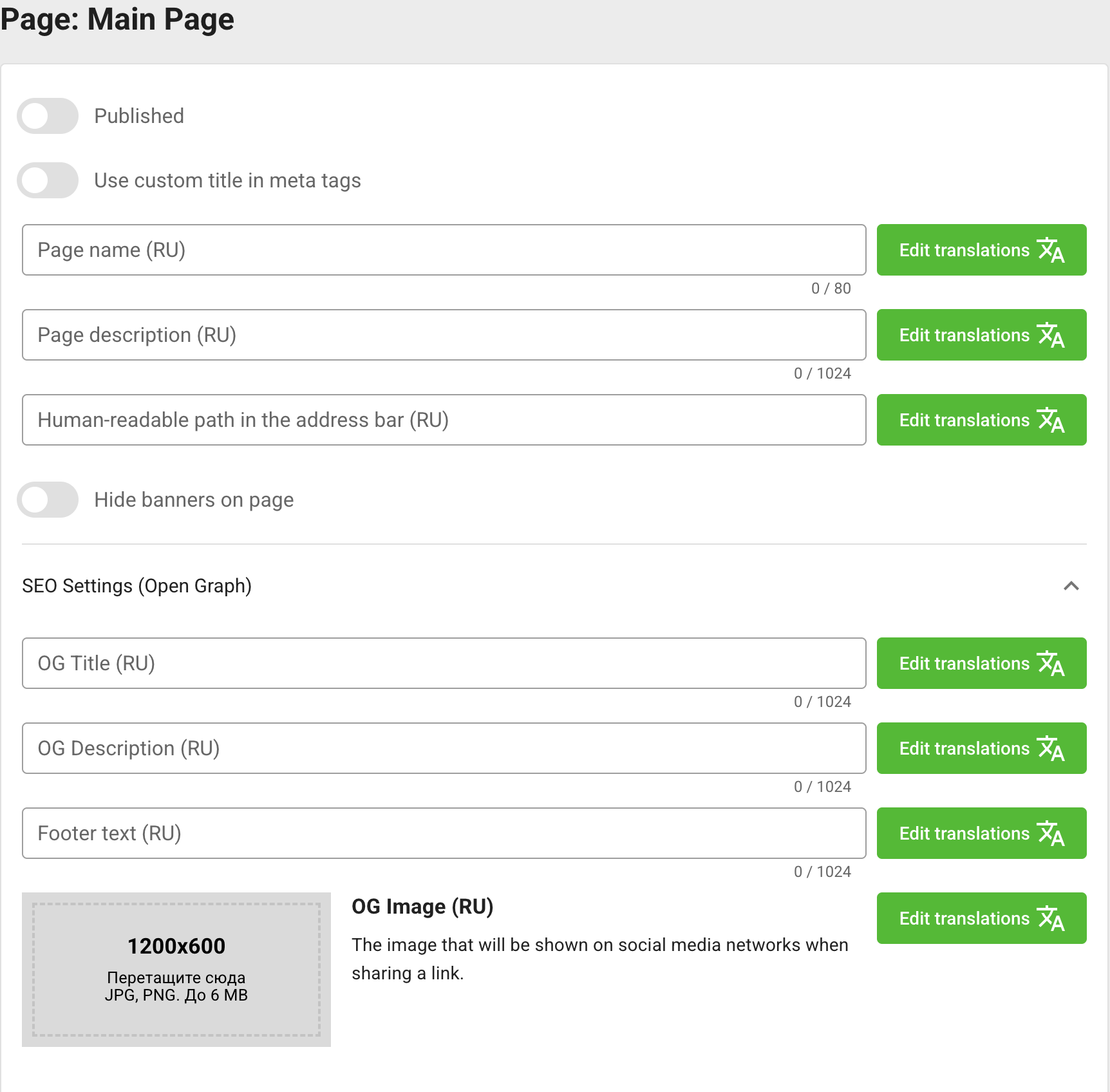
A page slug can contain letters, numbers, hyphens, underscores, and /. Keep every localized route unique. Enable Hide banners on page for legal or content pages that should not contain site-wide advertising.
Enable Use custom title in meta tags when the page title should be used instead of the platform SEO template.
Choose the home and legal pages
The selectors above the page list assign:
- the Main page of the platform site;
- the Privacy policy page;
- the Consent page for the processing of personal data.
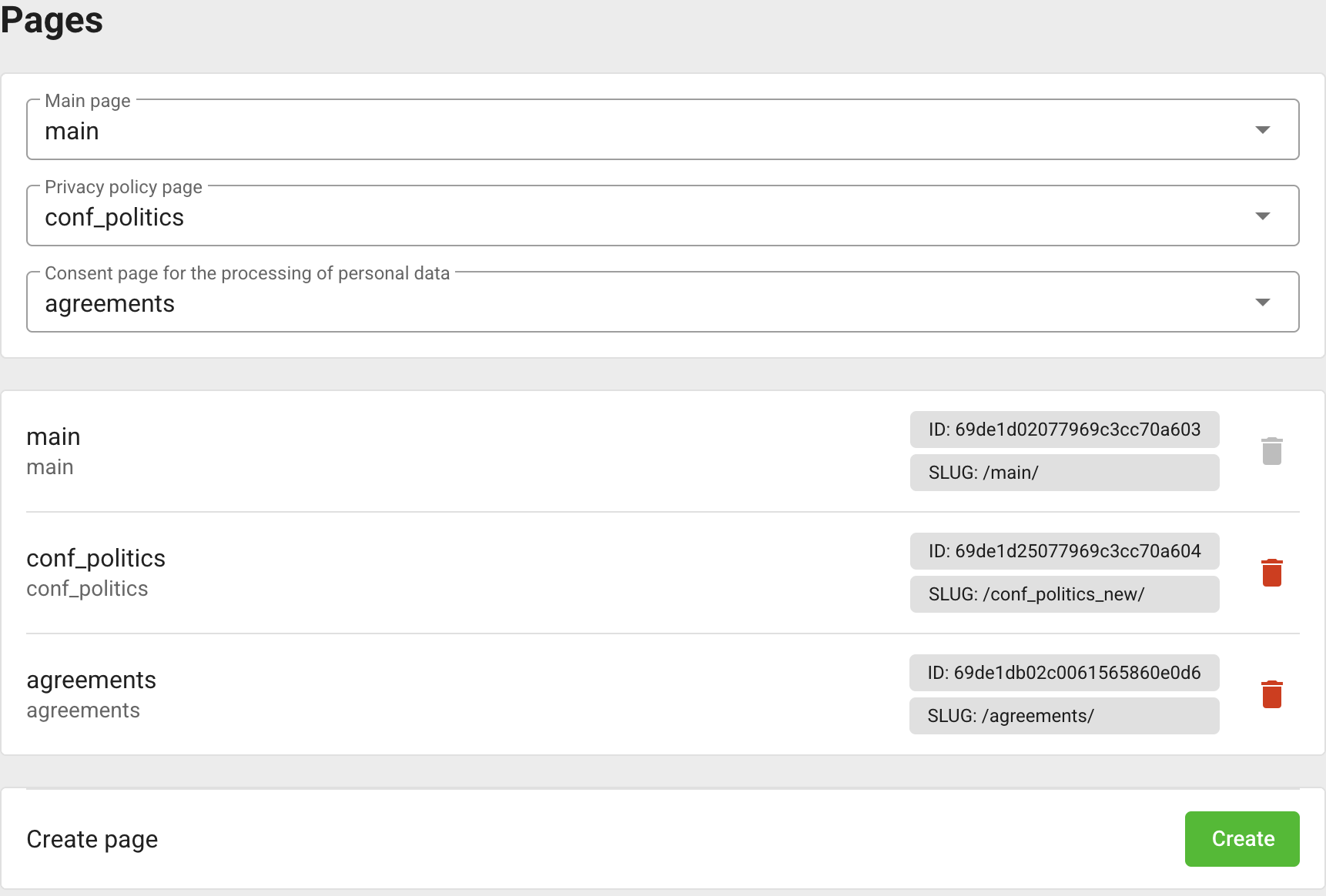
Create and fill the required pages first, then select them. The current main page cannot be deleted. To replace it, select another published page as the main page and check the site root route.
For legal documents, use a Content block with the complete localized document text. The localized legal company name and the registration consent checkbox are configured in Platform settings.
Add and arrange blocks
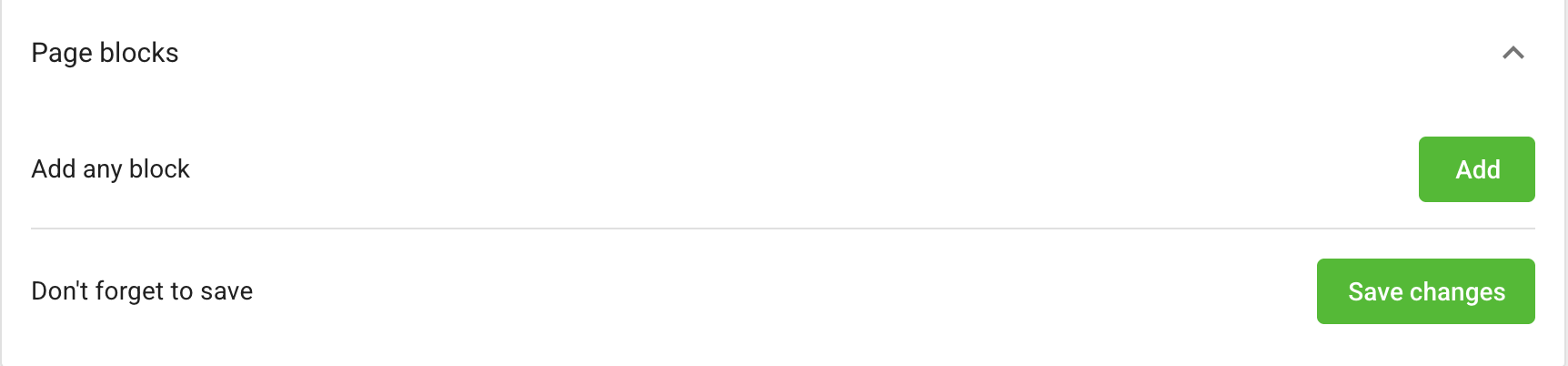
Open Page blocks, click Add, select a block type, and drag blocks into the required order.
| Block type | Purpose |
|---|---|
| Content | Localized rich-text or HTML content. |
| Collection | Games from a configured platform collection. |
| Category | Games assigned to a selected category. |
| Tag | Games assigned to a selected tag. |
| My Games | The current player's personal game list. |
| Custom | A site component identified by a custom block ID. |
Add a collection, category, or tag
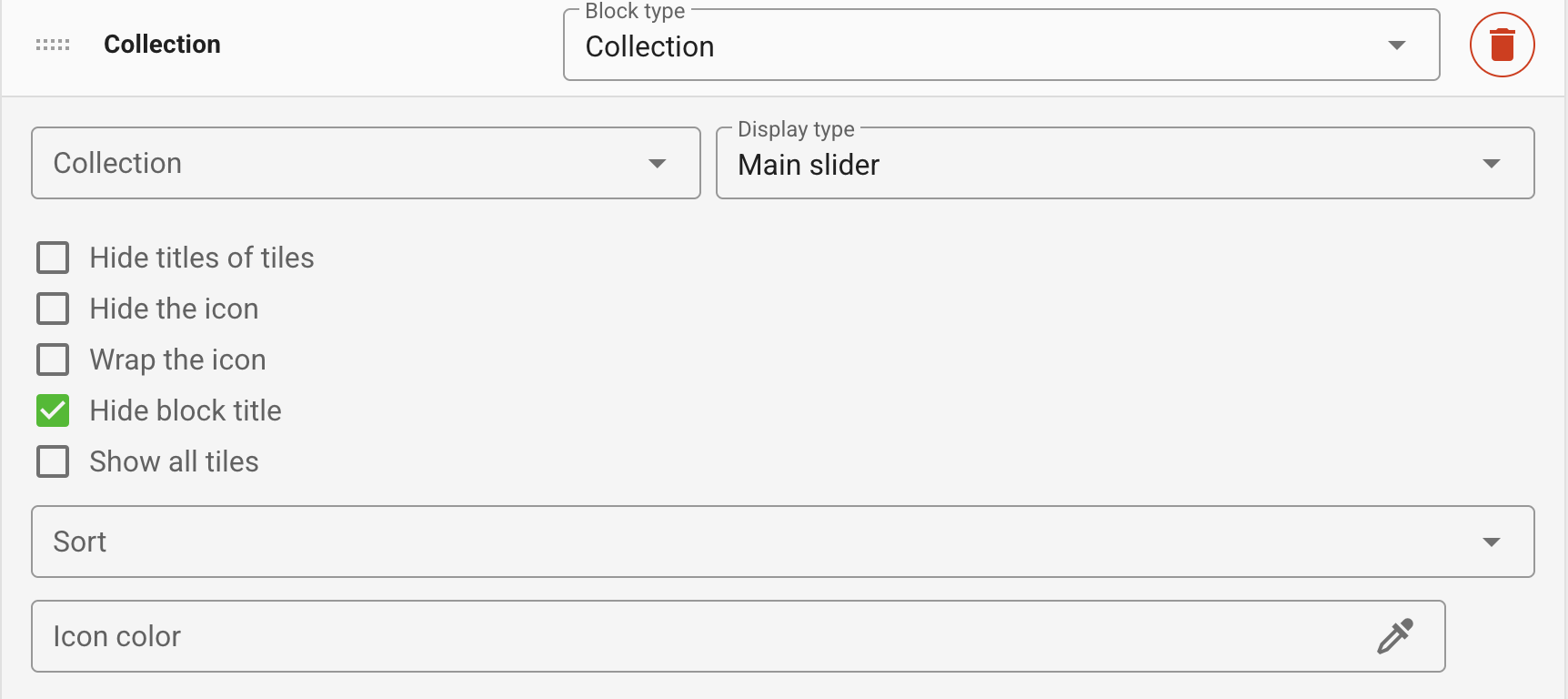
To reuse a list prepared in Collections, add a Collection block and select the collection. The block does not create or change the collection itself.
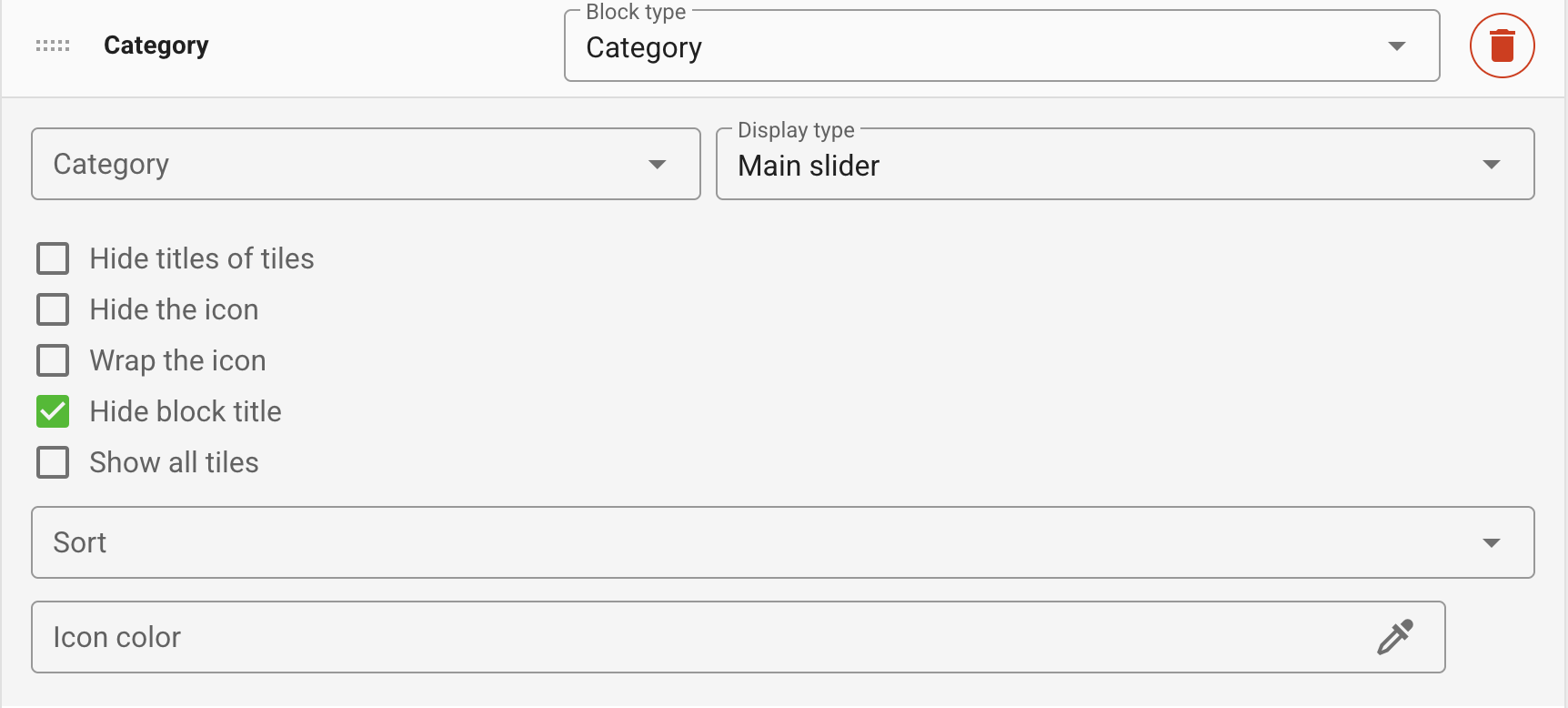
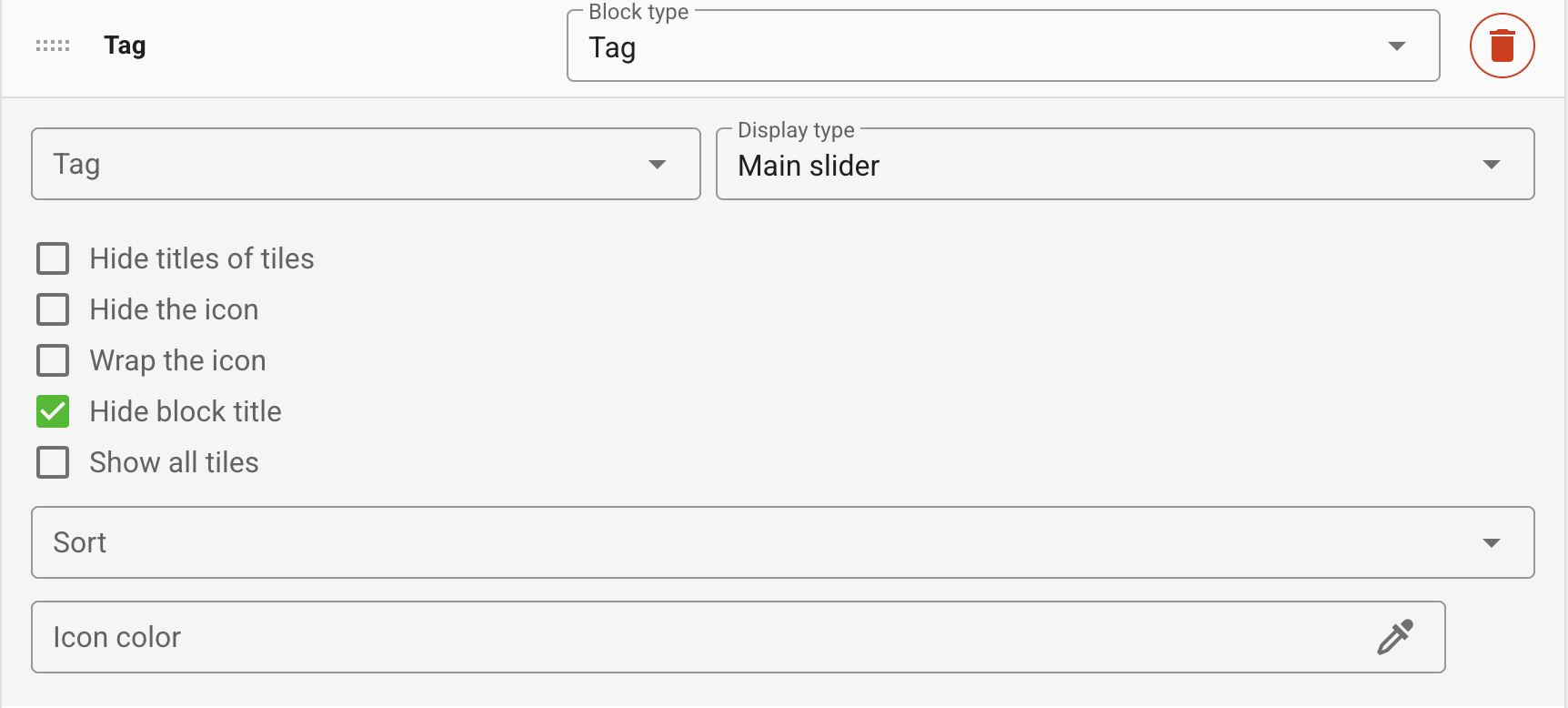
Use a Category block to show games assigned to one category, or a Tag block to show games with one tag. Create and configure these entities in Categories and Tags first.
Add text or a legal document
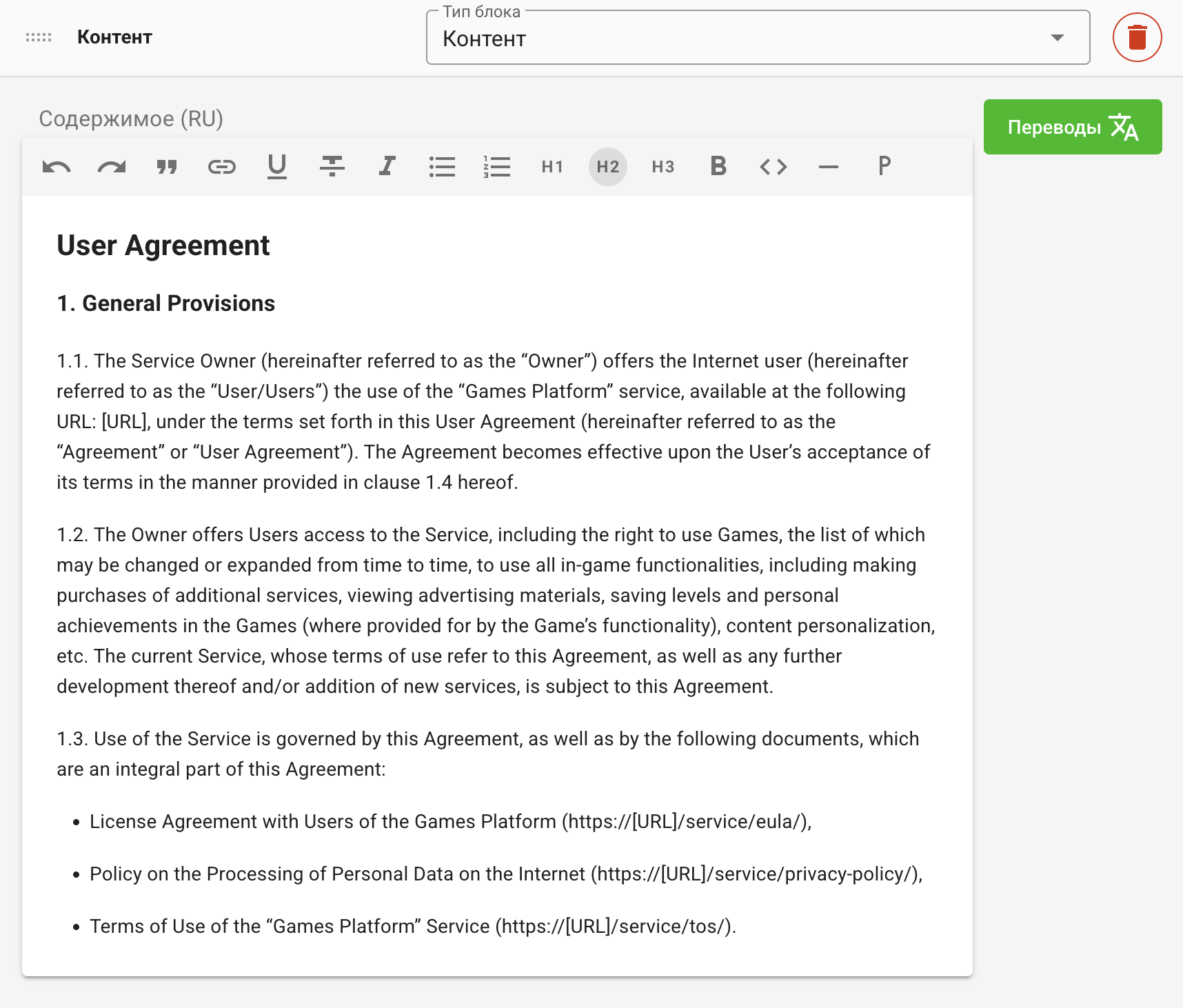
Add a Content block for headings, formatted text, links, lists, or HTML. The content is localized, so fill the document for every platform language. This is the appropriate block for a user agreement, privacy policy, or another text-only page.
Choose how game blocks look
Collection, category, tag, and My Games blocks use the same presentation controls. The available display types are:
- main slider;
- large horizontal tiles;
- large vertical tiles;
- small horizontal tiles;
- small square tiles;
- medium horizontal tiles;
- medium masonry tiles with one big and two small tiles;
- extra-small square tiles;
- big masonry tiles with one big and two small tiles.
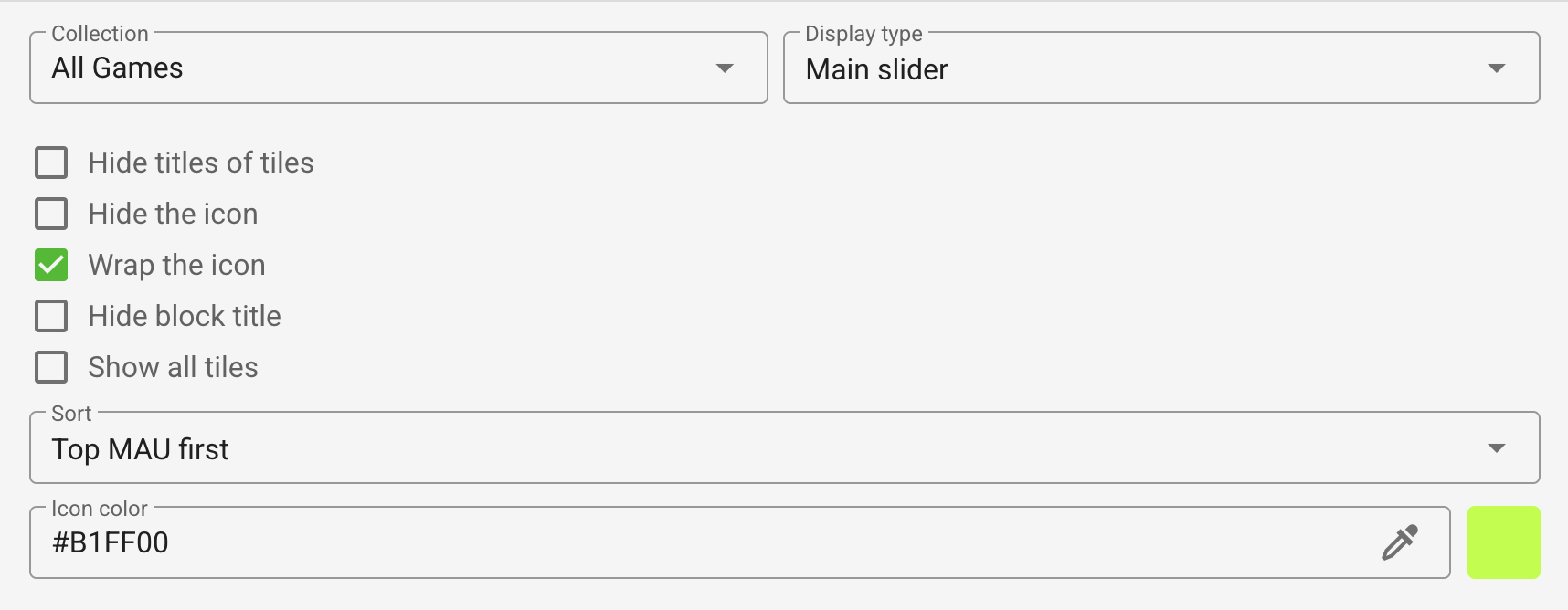
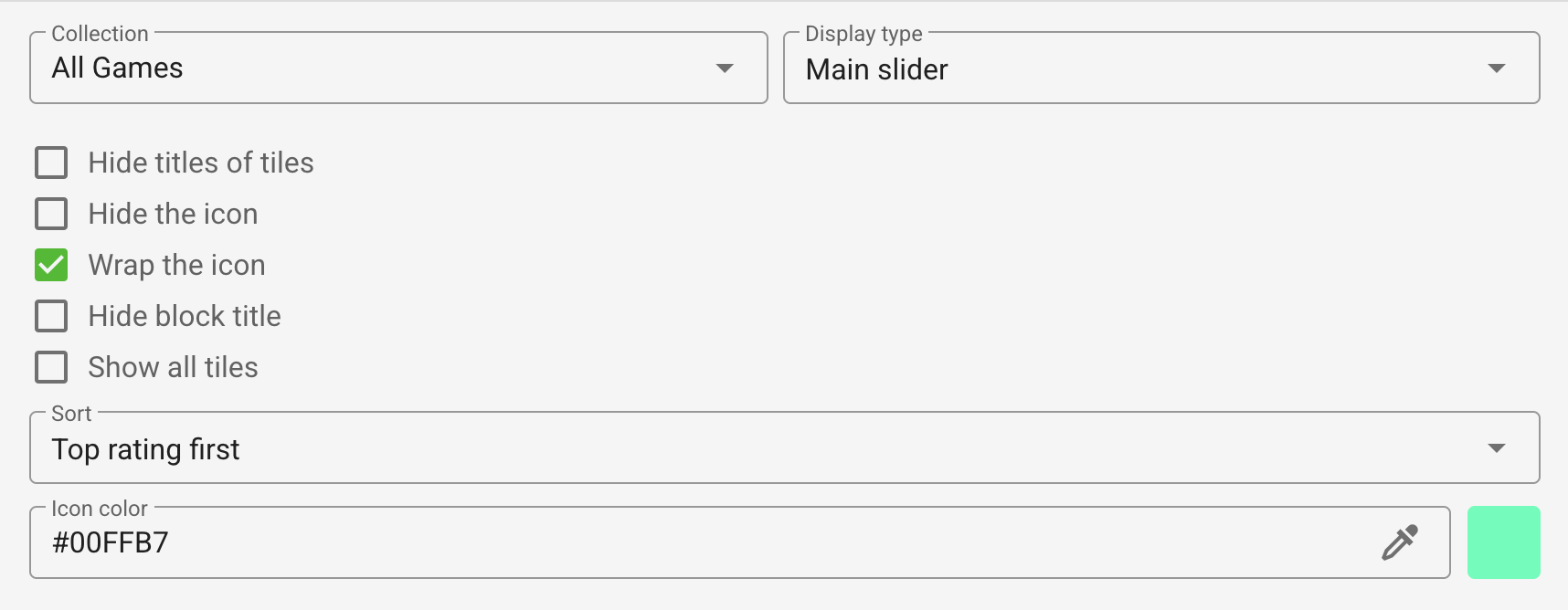
You can also hide tile titles, hide or wrap the entity icon, change its color, hide the block title, show all tiles, and override sorting. Save the page and check the result on desktop and mobile because each display type uses a different card size and density.
Add a custom storefront component
A Custom block does not contain editable HTML. Its ID must be implemented by the site code; an unsupported ID cannot render a component. Coordinate custom IDs with the frontend developers and see the Pages API for the returned data shape.

Removing a block only removes it from the current page. It does not delete the referenced collection, category, or tag.
FAQ: common game blocks
How do I add a “Popular games” block?
Create and publish a collection, set its default order to Top MAU first, and select it in a Collection page block. If the page block overrides the collection order, choose Top MAU first in the block as well.
How do I add a “New releases” block?
Create and publish a collection for new games and set its default order to Newest first. Add it to the page with a Collection block and keep Newest first as the block order.
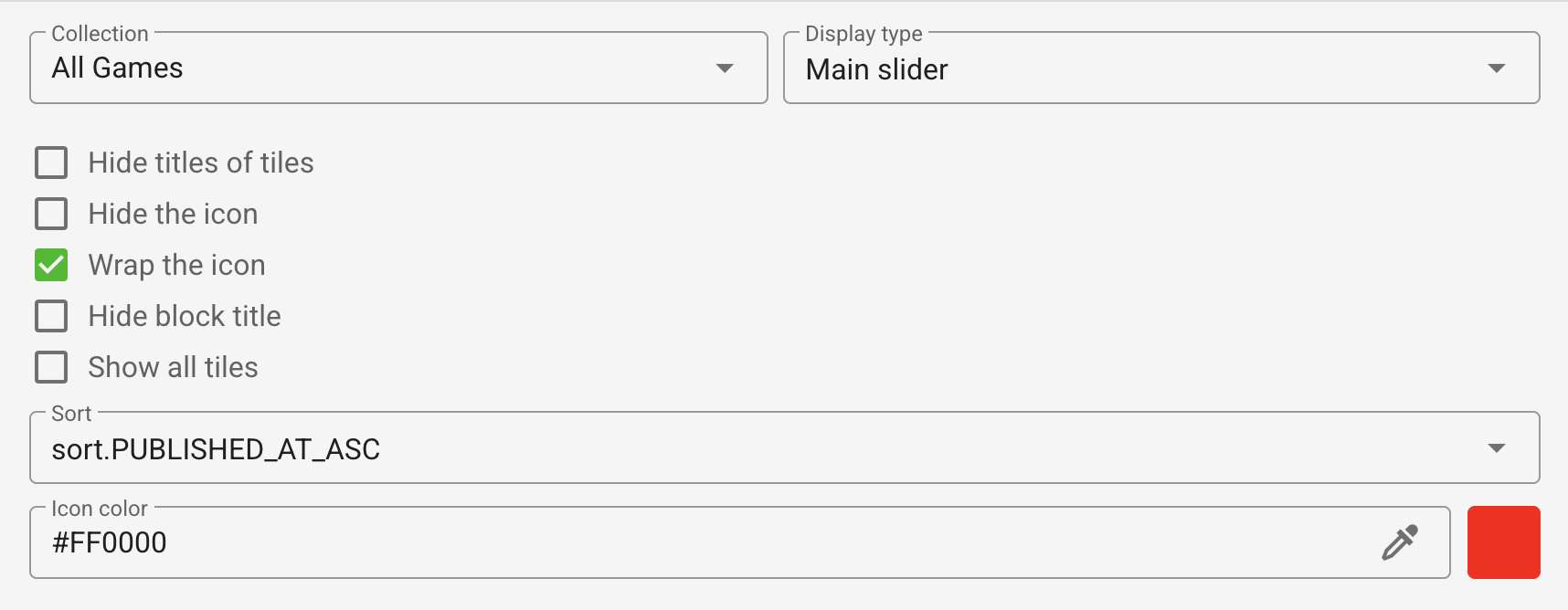
How do I add a “Player favorites,” “Interesting,” or “Recommended” block?
Create and publish a collection for the required theme, set its default order to Top rating first, and select it in a Collection page block. Keep the same order in the block if it overrides the collection setting.
Delete a page
Use the trash button in the page list. Before deleting a page, remove it from menus and page selectors. If it is the main page, assign another main page first.