Promotion
Promotion settings let you advertise platform products, important pages, or actions directly on the storefront. This section contains three related concepts: the promo block is the site area, a promo banner is one item shown in that area, and the PWA promo configures the separate installation prompt.
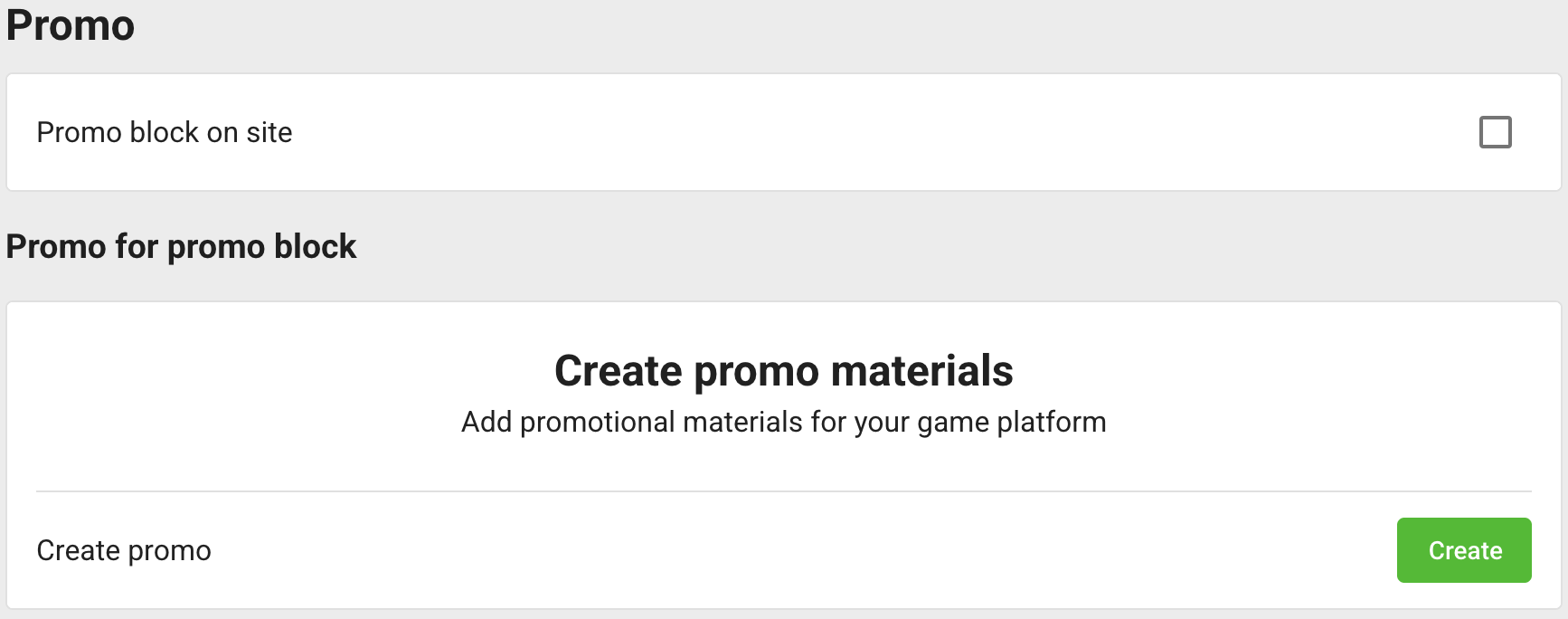
Enable the promo block
Use Promo block on site to enable or disable the whole promo area. Individual published promos are returned to the site only when this platform-level block is enabled.
Disabling the block keeps the saved banners in the control panel but removes the promo area from the storefront. This switch does not control the PWA installation prompt.
Create a promo banner
- Click Create, enter an internal promo name of up to 40 characters, and confirm.
- Open the promo from the list.
- Enable Published when the banner is ready.
- Optionally enable Only for non-authorized users.
- Add localized promo text of up to 40 characters.
- Upload localized square and horizontal images.
- Configure the click action and click Save changes.

The image editor expects 300 × 300 pixels for the square image and 320 × 100 pixels for the horizontal image.
The ready-made storefront uses the square and horizontal variants in layouts with different proportions. Upload both so the same promo can appear in every supported placement.
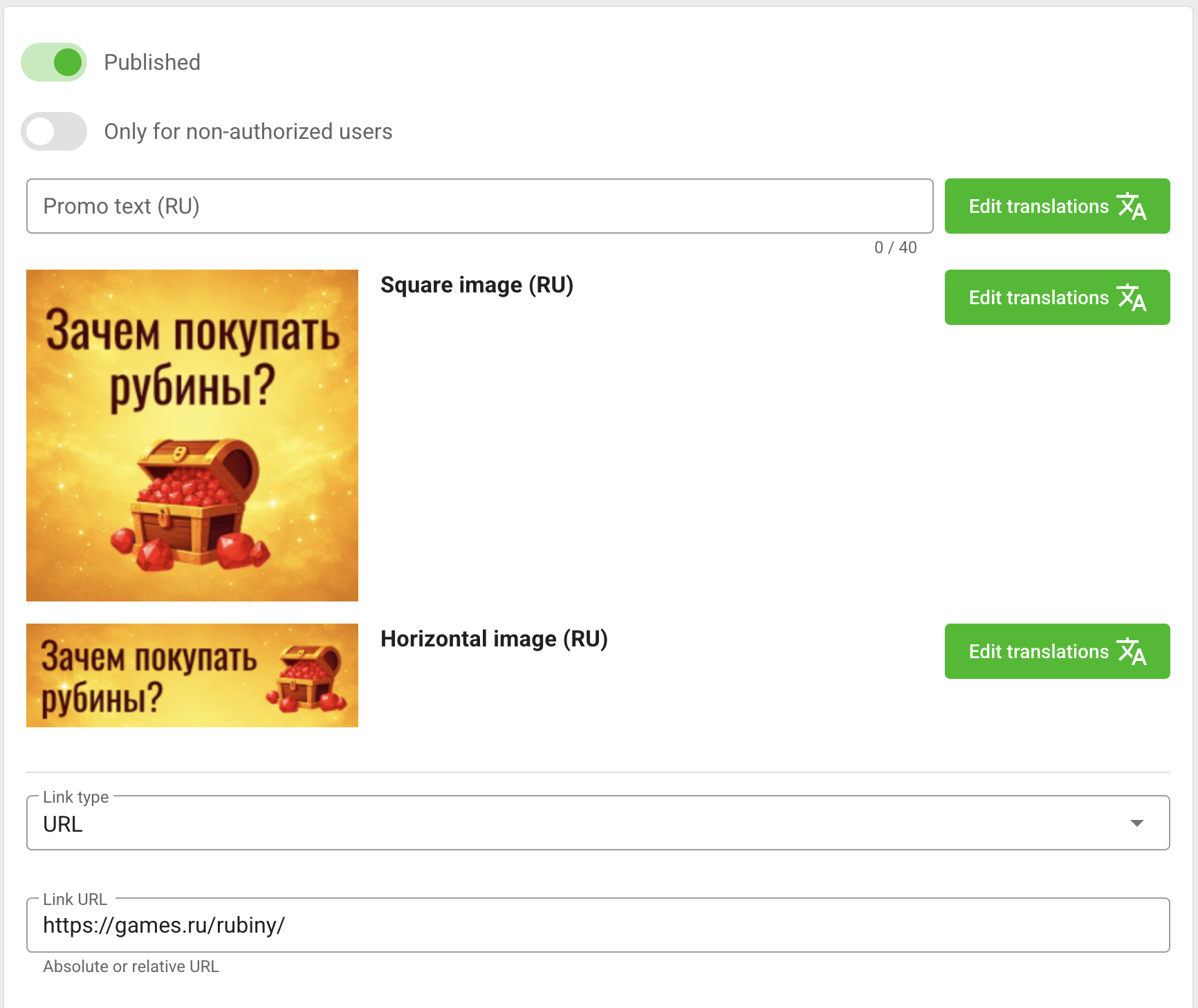
A promo can open:
- an absolute or relative URL;
- the disable-ads popup;
- the authorization popup;
- the balance top-up popup.
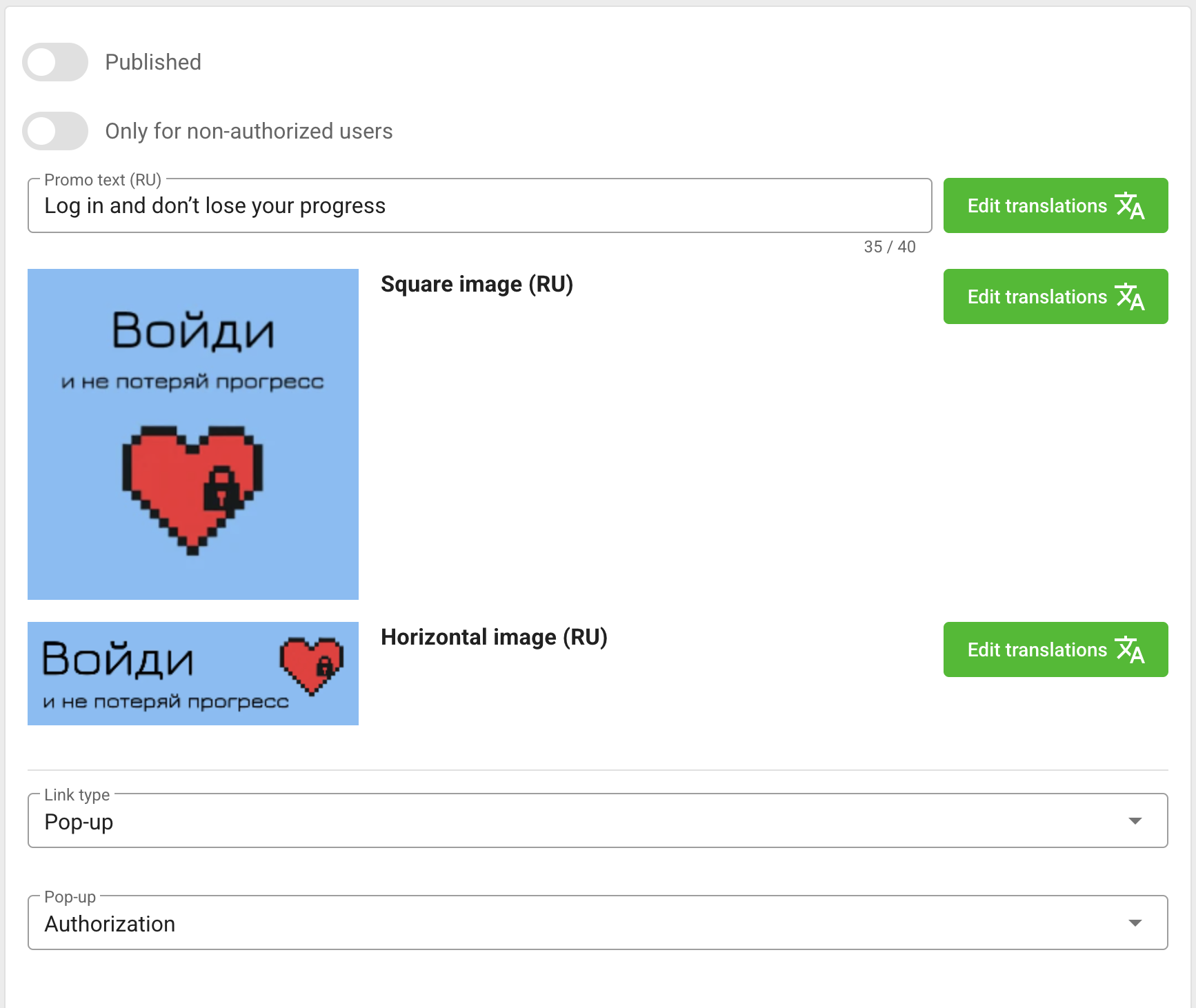
Clear the link type when the promo should have no click action. The power icon in the promo list shows the current publication state; open the promo to change and save that state. Use the trash button to delete a promo.
Custom frontends receive these settings through the Promotion API and must implement the corresponding popup actions.
Configure the PWA promo
The PWA Promo form contains a localized icon, title, and subtitle used by the site installation prompt. The image editor expects a 300 × 300 icon; the title is limited to 60 characters and the subtitle to 80 characters.
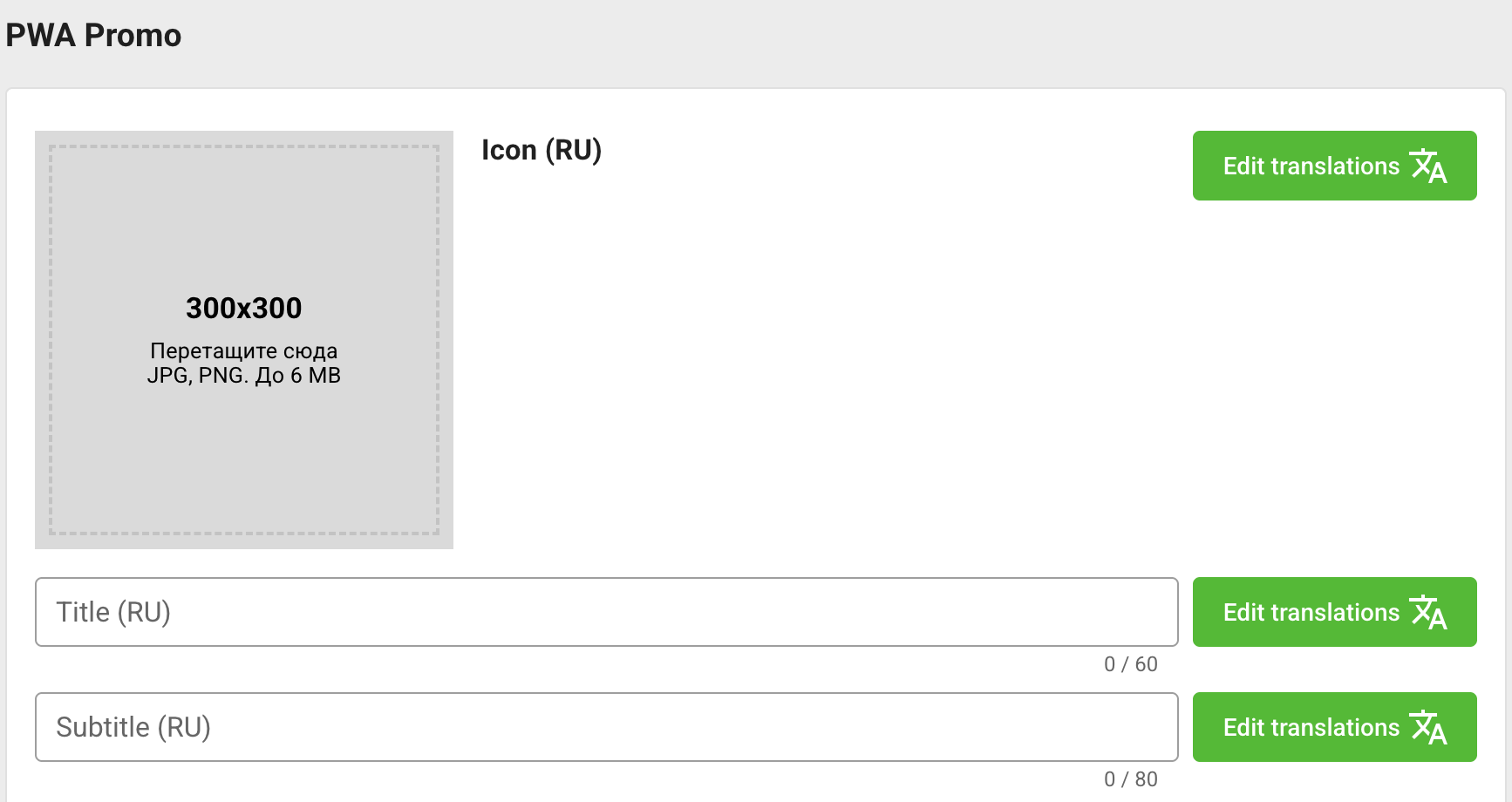
Save the PWA promo separately from regular promo banners.